How to Put the Same Photo in Several Google Drive Folders (Without Copying It)
Use Google Drive shortcuts to show one photo in several folders with no extra storage and no stale copies: how to add them on a computer, Android and iPhone, the sharing rule that breaks them, and how photographers build portfolios, album picks and client galleries from one set of originals.
Short answer
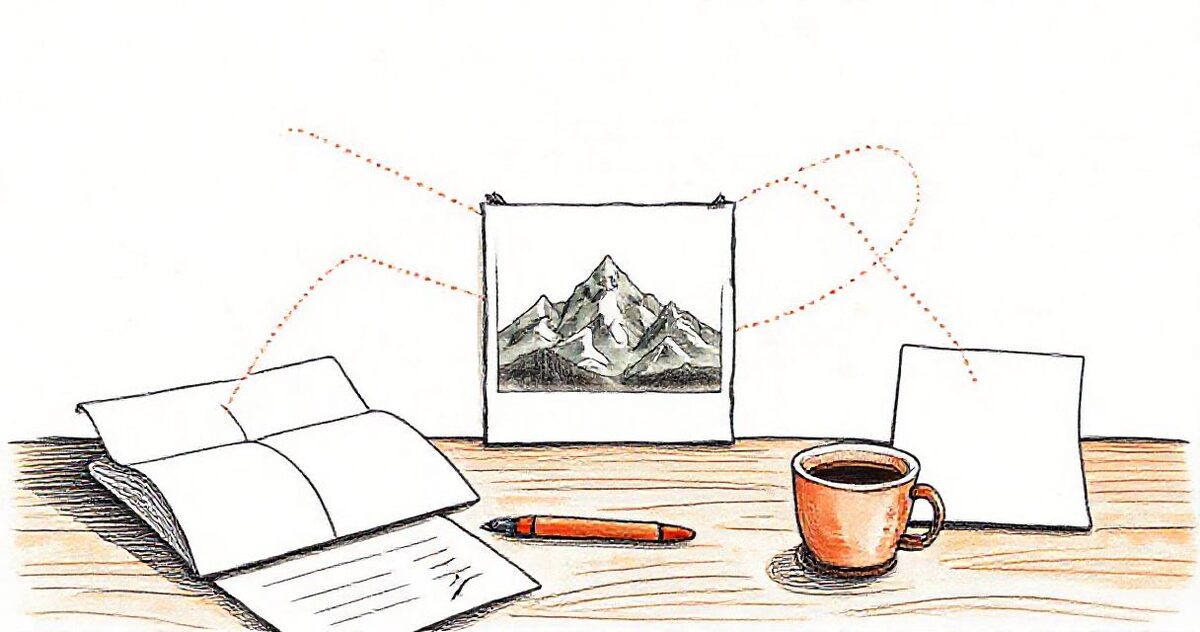
Keep each photo in one home folder and add a Google Drive shortcut to it in every other folder where it should appear: right-click, Organize, Add shortcut on a computer, or More, Add shortcut to Drive in the app. Shortcuts use no extra storage and always show the latest edit, but anyone viewing them also needs access to the original, so share the originals' folder as Anyone with the link.
Some photos belong in more than one place. The first-dance frame goes in the couple's gallery, in your portfolio and in the album picks. A portrait belongs in "Family" and in "Black and white". A product shot belongs in "New in" and in "Summer collection". The obvious move, copying the file into each folder, works for about a week. Then you have three versions of the same photo, one of them edited and two not, all counting against your storage.
Google Drive has a proper answer to this: shortcuts. This guide covers what they are, how to make them on a computer and on your phone, the sharing setting that catches almost everyone out, and how to use them to build several client galleries out of one set of originals.
- The short version
- Why copying a photo into several folders goes wrong
- What a Google Drive shortcut is
- How to add a shortcut on a computer
- How to add a shortcut on Android and iPhone
- Shortcut, copy or move: which to use
- The sharing rule that breaks most shortcuts
- Five ways photographers use shortcuts
- Shortcuts in a GalleryLink gallery
- Six mistakes worth avoiding
- The whole thing on one page
The short version
Keep each photo in one home folder, and put a shortcut to it in every other folder where it should appear. On a computer, right-click the photo in Google Drive and choose Organize → Add shortcut, then pick the folder. On the Drive app, tap the three-dot More menu and choose Add shortcut to Drive. A shortcut uses no extra storage and always shows the current version of the original. If anyone else will look at the folder, a client for example, the original photo must be shared with them too, usually by setting its folder to "Anyone with the link".
Why copying a photo into several folders goes wrong
Copying feels safe because each folder ends up complete on its own. The cost shows up later:
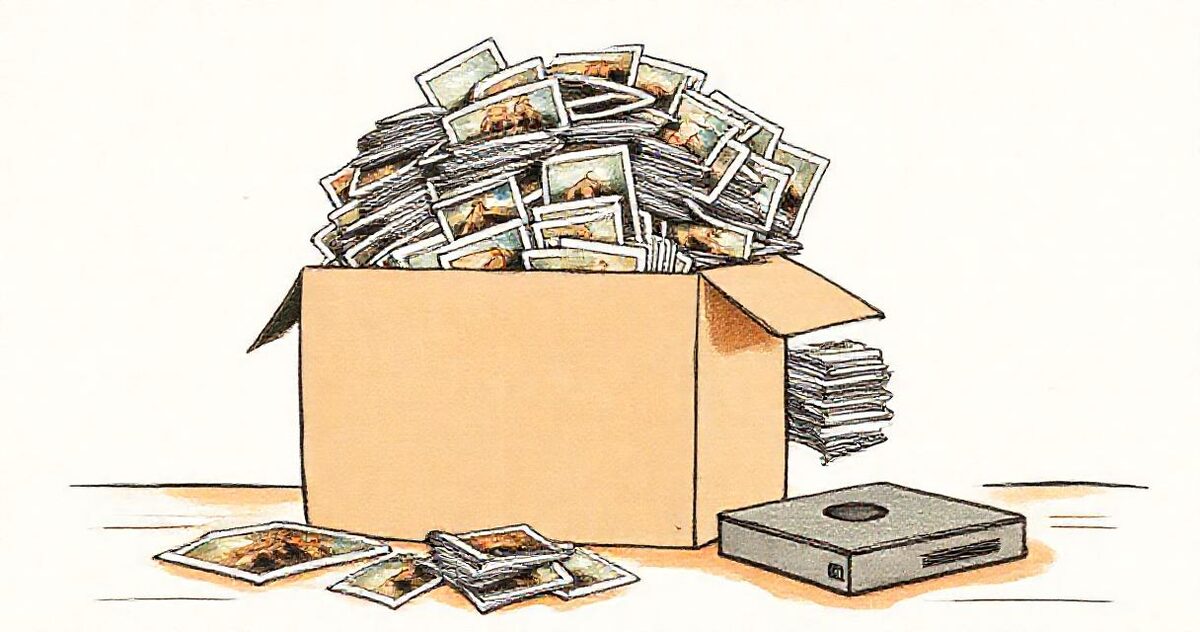
- Every copy uses storage. A copy is a second file. Copy a 25 MB photo into three more folders and it takes up 100 MB of your Google storage. Do that across a wedding's worth of portfolio picks and album selections and it adds up quickly, especially on the free 15 GB.
- Copies go stale. You re-edit the photo, fix a stray hair or warm the skin tones, and replace the file in the main folder. The copies in the album folder and the portfolio still show the old edit, and nothing tells you which version is where.
- Deleting is guesswork. When a client asks you to remove a photo, you have to remember every folder you copied it into.
Moving the photo instead of copying it avoids the duplicates, but then it only lives in one place, which was the problem you started with.
What a Google Drive shortcut is
A shortcut is a small pointer file that sits in a folder and opens another file or folder that lives somewhere else. If you have used aliases on a Mac or shortcuts on Windows, it is the same idea.
Shortcuts became the way to do this in 2020. Until then, Drive let one file sit in several folders at once. From 30 September 2020 Google stopped allowing that in My Drive, and files that already lived in several folders were gradually converted: the file kept one home folder and each extra location was replaced with a shortcut. So if you have an older Drive and see shortcuts you don't remember making, that is probably where they came from.
What is useful to know about how they behave, from Google's own help pages:
- A shortcut does not copy the file. Open it and you are looking at the original, so an edit to the original shows everywhere.
- It breaks if the original is trashed or deleted. Restore the original and the shortcut works again.
- Access comes from the original. Anyone who can see the folder can see the shortcut is there, but they can only open the photo if they have access to the original. More on this below, because it matters for clients.
- You can't make a shortcut to a shortcut. Point every shortcut at the original.
- There is a ceiling. Google's help page puts it at 500 shortcuts to the same file or folder per person, and 5,000 in total. You will not reach it with photos.
How to add a shortcut on a computer
- Open drive.google.com and find the photo in its home folder. You can select several photos at once with Shift or Ctrl (⌘ on a Mac).
- Right-click and choose Organize → Add shortcut.
- Pick the folder the shortcut should go in, and confirm.
In Chrome there is a quicker way that Google documents too: select the photos, press Ctrl + C, open the destination folder and press Ctrl + Shift + V. That pastes shortcuts rather than copies, which makes it easy to fill a "Best of" folder while you scroll through a shoot.
Shortcuts show in the folder with a small curved arrow on the icon. That arrow is the only visual difference, so it is worth checking for it when a folder seems to have "lost" photos after someone tidied it up.
How to add a shortcut on Android and iPhone
The Google Drive app does it in almost the same way on both:
- Open the Drive app and find the photo or folder.
- Tap the three-dot More menu next to it.
- Choose Add shortcut to Drive.
- Pick the folder, then tap Add shortcut (Android) or Add (iPhone and iPad).
If the app says the folder is view only, you don't have permission to add things to it. Pick a folder you own, or one you have been given edit access to.
Shortcut, copy or move: which to use
| Shortcut | Make a copy | Move | |
|---|---|---|---|
| Extra storage used | None | The full file size again | None |
| Shows your latest edit everywhere | Yes | No, each copy is separate | Only one place |
| Photo appears in several folders | Yes | Yes | No |
| Survives the original being deleted | No | Yes | Not applicable |
| Who can open it | Whoever can open the original | Whoever can open the copy's folder | Whoever can open the new folder |
| Best for | Picks, portfolios, category folders | Handing someone files they will keep and change | Tidying up |
You may also remember an "Add to My Drive" button on files other people shared with you. That has been replaced by Add shortcut to Drive as well, and it works the same way: the file stays in the other person's Drive and you get a pointer to it in yours. If they delete it or stop sharing it, your shortcut stops working. When you need a file to keep regardless, make a copy instead.
The sharing rule that breaks most shortcuts
This is the part that trips people up, so it is worth being precise. When you share a folder, Drive shares the folder and the files that live in it. It does not share the originals that the folder's shortcuts point to. Those keep whatever sharing they had in their own home folder.
So picture a common set-up. Your originals sit in a private "2026 Weddings" folder. You make a "Smith wedding: album picks" folder full of shortcuts, share it as "Anyone with the link", and send it to the couple. They open the link and see the photo names, but when they tap one, Google asks them to sign in or request access. Nothing is wrong with the shortcuts. The originals simply aren't shared with them.
The fix is to share the originals as widely as the place you are showing them:
- Easiest: share the home folder of the originals as "Anyone with the link" (Viewer). Every photo inside it, and every shortcut pointing into it, then works for anyone who has a link.
- If the home folder must stay private, share just the originals you have made shortcuts to. That works, but it is easy to miss one.
To check, open the shared folder in a private or incognito window, where you are not signed in to Google. Whatever opens there is what your client will see. If a link is still misbehaving, our guide to a Google Drive link that isn't working for your client goes through the other usual causes, and sharing a Drive folder with someone who has no Google account covers the sign-in prompts.
Five ways photographers use shortcuts
- A portfolio that never goes out of date. Keep a "Portfolio" folder made only of shortcuts into your delivered client folders. When you re-edit a favourite in the client folder, the portfolio shows the new edit automatically. Our guide to turning Google Drive into a portfolio website builds on exactly this kind of folder.
- Album picks for the designer. When the couple choose their album photos, add shortcuts to those photos in an "Album picks" folder and share that folder with your designer or lab. They get exactly the chosen frames at full resolution, and the main gallery stays as it is. See our proofing workflow for getting those choices back quickly.
- A gallery for each audience. The couple get the full wedding. The florist gets "Flowers and decor", the venue gets "The venue", the families get "Family portraits", each a folder of shortcuts into the same originals. Nobody receives four hundred photos to find their twelve.
- Category folders for a long-running archive. Landscape, street and fine-art photographers often want one image to sit in "Iceland", "Black and white" and "Prints available" at once. With shortcuts there is one file and three ways in.
- Product photos in several collections. The same product shot can appear in "New in", "Summer" and "Under $50" without three files to update when the photo is retouched. Our Google Drive product catalogue guide covers the rest of that set-up.
All five follow the same pattern: one tidy home for the originals, organised the way you shoot, and as many curated views as you need on top. Our guide to organising Google Drive for a photography business covers how to lay out that home folder.
Shortcuts in a GalleryLink gallery
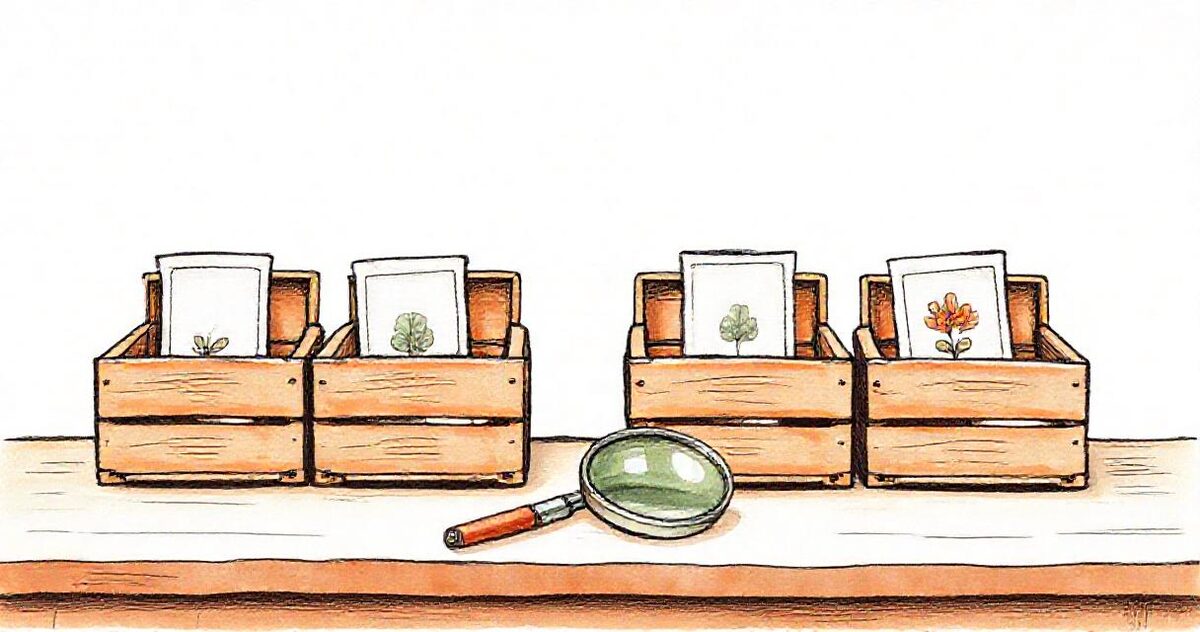
A shared Drive folder works, but it opens on Google's file browser, with file names instead of a cover. GalleryLink turns a shared Drive folder into a client gallery, and on Pro it reads shortcuts too. This is how it behaves, so you can plan around it:
- A shortcut shows as the photo or video it points to, under the shortcut's name, at full quality. It downloads like any other photo in the gallery, and it is included in the download-all ZIP.
- The original must be viewable by link. Before showing a shortcut, GalleryLink checks that the original can be opened by anyone with the link. If it can't, that shortcut is left out of the gallery, rather than shown to your client as a broken tile or a Google sign-in page. Share the originals' folder as "Anyone with the link" and they appear.
- Changes show up within about ten minutes. GalleryLink remembers each check for ten minutes, so a newly shared original or a new shortcut can take that long to appear.
- Shortcuts to photos and videos only. A shortcut to a whole folder isn't opened as a section. For a section, use a real subfolder.
- Up to 300 shortcuts per folder. Each folder in a gallery shows up to 300 shortcuts. For larger sets, spread them across subfolders, which become sections of the gallery.
- Each photo appears once per gallery. If the same photo turns up twice in one gallery, as an original and as a shortcut, or as two shortcuts in different subfolders, it is shown only the first time: photos loose in the top folder come first, then subfolders in name order. Shortcuts are at their best when they put the same photo into different galleries, or when a gallery is made entirely of picks.
On the Free plan, shortcuts aren't read. If you paste a folder that holds only shortcuts, GalleryLink tells you so and suggests copying or moving the photos into the folder instead.
Pro is $5 a month or $50 a year, with unlimited galleries that stay online, password protection, every theme and layout, gallery stats and no GalleryLink branding. The free plan shares one gallery for 24 hours, and $10 once keeps it online. Everything is on the pricing page.
Six mistakes worth avoiding
- Sharing the shortcut folder but not the originals. Your client sees names and a sign-in prompt. Share the originals' home folder too, and test in a private window.
- Deleting or trashing the originals to "clean up". Every shortcut to them stops working at once. If you need to tidy, move the originals to another folder instead. A move doesn't break shortcuts.
- Keeping originals in someone else's Drive. If a second shooter or an assistant owns the originals, your shortcuts depend on their account. When they leave and delete their files, your portfolio and album folders go with them. Make sure the files you depend on are in a Drive you control.
- Making shortcuts to copies. It is easy to point a shortcut at an old copy and then wonder why the new edit doesn't show. Point shortcuts at the one file you keep editing.
- Expecting a shortcut to stand in for a backup. A shortcut is not a second copy. Our backup workflow covers what is.
- Renaming the shortcut and expecting the original to change. A shortcut has its own name. That is useful (in GalleryLink it is the name shown in the gallery), but the original keeps its own.
The whole thing on one page
- Keep every photo in one home folder, organised by job.
- Edit and replace files only there.
- For every other place a photo should appear, add a shortcut: Organize → Add shortcut on a computer, More → Add shortcut to Drive in the app.
- Share the originals' home folder as widely as any folder that shows them, usually "Anyone with the link" (Viewer).
- Open each shared folder in a private window to check what other people will see.
- Move originals if you must reorganise; never trash them while shortcuts point at them.
- To send a set as a proper gallery, paste the folder link into GalleryLink. On Pro, shortcuts show as their photos.
One original, many views of it, and nothing to keep in sync by hand. If you would like to see how a folder of yours looks as a gallery, you can create a free GalleryLink account and paste the link in under a minute.