Photos first
A masonry or grid of real dish photos, with the name and price under each, looks like your food rather than a document.
Restaurants and cafés
Diners decide with their eyes, and a menu that shows the dish sells it better than a line of text. GalleryLink has a menu mode built for exactly this: drop your dish photos in a Google Drive folder, name each one with the dish and price, and you get a clean photo menu at one link, with a QR card for the tables.
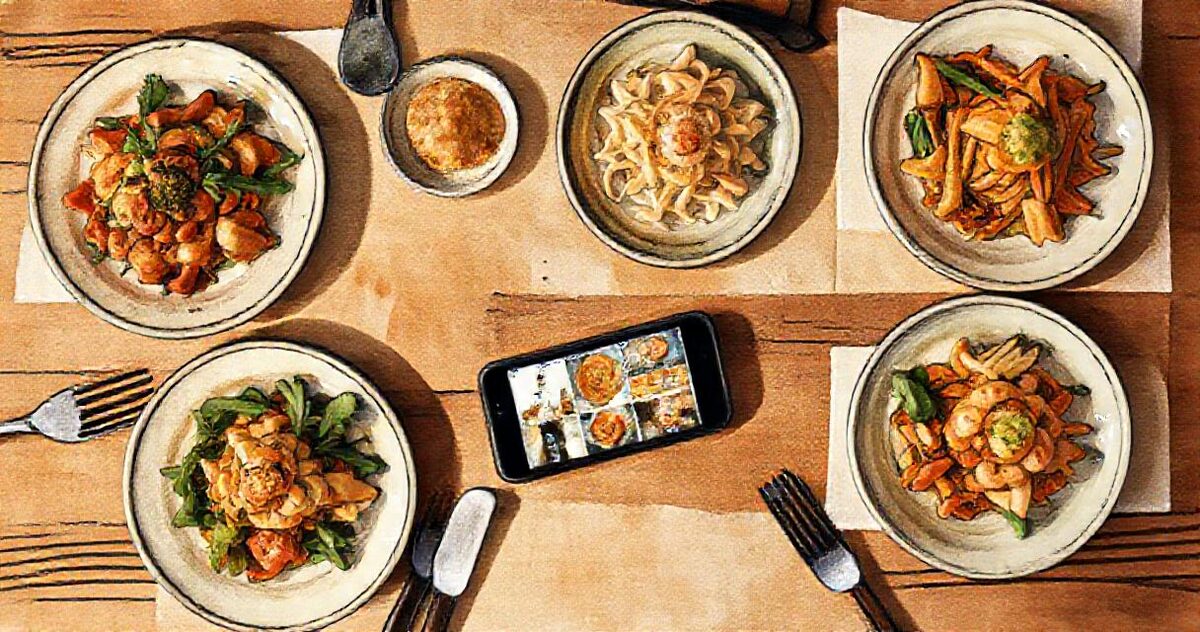
The simplest photo menu is a folder of dish photos named with the dish and price, shown as a menu page behind a QR code on each table. GalleryLink turns a Google Drive folder into that page in menu mode: names and prices under the photos, no hearts or downloads, and it updates when you change the folder. If you also want ordering and billing, MenuLink, our sister app from Upbrew, is built for that.
One photo per dish. Subfolders become sections, so Starters, Mains and Desserts can each be a folder.
“Margherita pizza £12.jpg” shows as “Margherita pizza £12” under the photo. Uploading instead of using Drive? Type a caption on each photo.
Choose “Product menu” under “What is this gallery?”. Hearts, favourites and download buttons disappear, because nobody shortlists a soup.
The QR & Print tab designs a table card or poster that opens the menu. Add a photo or change a price in the folder and the menu updates; the QR code never changes.
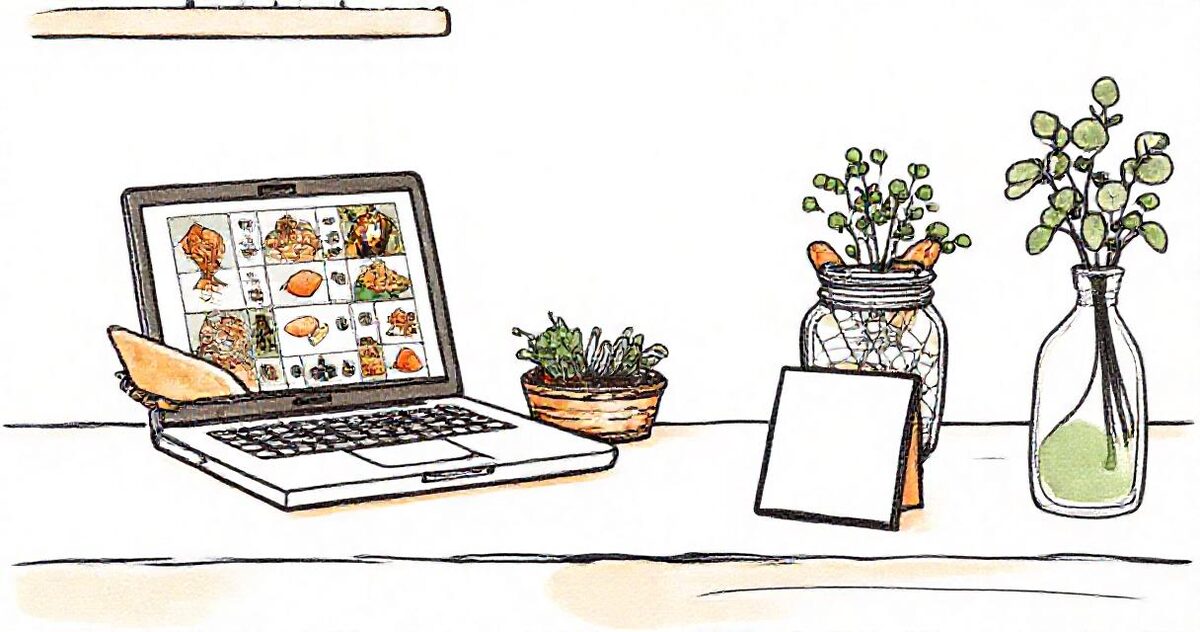
A masonry or grid of real dish photos, with the name and price under each, looks like your food rather than a document.
The menu reads your Drive folder, so a new special is on the menu as soon as its photo is in the folder.
File names become the menu text. There is no dish database to fill in before you can see the result.
Export the same menu as a PDF to laminate, and print table cards with the QR code from the same page.
The free plan publishes one live gallery — enough to try this on a real job. Pro is $5/mo or $50/yr for unlimited galleries, password protection, every theme and layout, and your own studio subdomain. Your photos stay in your Google Drive either way, so nothing here is priced by storage.
See full pricing →No. GalleryLink shows the menu; it does not take orders or payments. If you want diners to order and pay from the table, MenuLink (menulink.live), our sister app from Upbrew, does ordering, billing and kitchen tickets.
Put the price in the file name, for example “Mango lassi £4.50.jpg”. The extension is removed and the rest is shown as written. For uploaded photos you can type a caption instead, which is shown exactly as you typed it.
A menu needs a link that stays up, so use Pro, which keeps galleries online for good. On the free plan a gallery's link stays live for a few days, or you can keep a single gallery for a one-off payment.
No. The QR code points to the menu's link, and the link stays the same while you add, remove or rename photos in the folder.
Paste a Google Drive folder link — or upload the photos straight to us — and share a beautiful gallery. Free to start, no credit card.
Start freeCreate a gallery