Google Drive for Photographers: The Complete 2026 Guide to Storage, Sharing and Client Delivery
How Google's shared storage really works in 2026, what the 15 GB (or 5 GB) quota means for RAW shooters, which Google One plan a working photographer needs, how to structure and share folders, and how to deliver from Drive without re-uploading.

Short answer
Google Drive is the best free and low-cost archive a photographer can have, provided you treat it as one: keep RAW and finished JPEGs in Drive rather than Google Photos, buy the 2 TB Google One plan the moment you shoot professionally, arrange folders as year, client, job, and share client folders as Anyone with the link set to Viewer. Deliver from those folders with a gallery that reads Drive live instead of uploading a second copy, and keep a local backup because Drive is sync, not backup.
Most photographers already run their business on Google Drive for photographers without ever having decided to. The exports land in a Drive folder because that is where the laptop syncs, the client gets a link because it is the fastest thing to send, and the archive grows until a warning appears in Gmail one morning saying you cannot receive email. That warning is the point at which most people go looking for a guide, and by then the folder structure is a decade of improvisation and the free quota is gone.
This guide is the version of that conversation you would want to have had earlier. It covers how Google's storage actually works in 2026, including a change this year that halved what a new account gets for free, which Google product should hold your photos and which should not, the limits that matter for large shoots, what a working photographer really needs to pay for, how to lay out folders so they still make sense in five years, how to share with clients without giving them a file manager, and where Drive fits in a backup plan. Every figure below is linked to Google's own documentation or to a primary source, because storage advice ages fast and you should be able to check it.
Table of Contents
- 1. How Google's storage actually works
- 2. Drive or Google Photos: which one holds your work
- 3. The limits that matter for photographers
- 4. How much space a photography business needs
- 5. Choosing a plan without overpaying
- 6. A folder structure that still makes sense in five years
- 7. Sharing with clients: permissions, links and what they actually see
- 8. Delivering from Drive without uploading anything twice
- 9. Drive is sync, not backup
- 10. Keeping client work private
- 11. Seven mistakes that cost photographers real money
- Final thoughts
1. How Google's storage actually works
The single most misunderstood fact about Google Drive is that it does not have its own storage. Every personal Google account has one pool of space, and Google's own help page is explicit that it is shared among Drive, Gmail and Photos. A decade of email attachments, every phone photo backed up automatically, and your RAW archive are all drawing from the same jar. That is why the warning that you are out of space so often arrives in Gmail first, and why deleting a few old emails never fixes it for long.
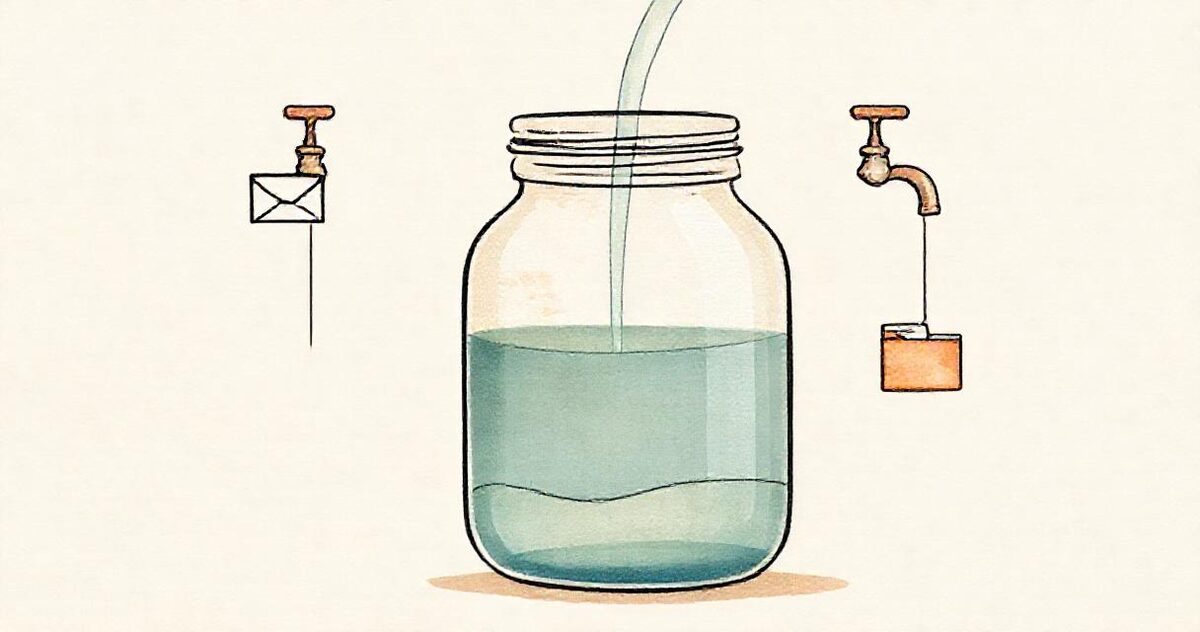
The 15 GB that is now sometimes 5 GB
For years the free pool was 15 GB, which Google still describes as the standard allowance. In May 2026 that changed for new accounts. As 9to5Google reported, a newly created Google account now receives 5 GB by default, and the full 15 GB is unlocked only after a phone number is linked to the account. Existing accounts were not reduced. If you have just created a second account to hold client work, which is a common and reasonable move we will come back to, verify the phone number before you rely on it, or you will hit the wall at a third of the size you expected.
What stops working when the jar is full
When the pool is exhausted the effects are not limited to Drive. Google stops accepting new uploads to Drive, stops backing up to Photos, and after a grace period stops delivering incoming email to Gmail. For a photographer the last one is the expensive failure, because the email that bounces is the enquiry for next spring's wedding. Treat a storage warning as a business interruption, not a housekeeping note.
The free tier is not sized for a camera. It is sized for a phone, a Gmail account and a few documents. Everything in this guide follows from taking that seriously.
2. Drive or Google Photos: which one holds your work
Google offers two places to put images and they behave differently enough that choosing wrong costs quality, structure, or both.
Google Photos is built for snapshots
Google Photos is a consumer library: it wants to ingest everything from a phone, recognise faces, and make albums. It has two upload settings, documented on Google's backup options page. Original quality stores files as shot. Storage saver, which used to be called High quality, recompresses photos to save space, which is exactly what you do not want to happen to a finished client image. Photos also has no real concept of the folder hierarchy you built on disk, and its handling of RAW is limited: it is a JPEG and HEIC world with RAW as a guest.
Drive keeps files exactly as they are
Google Drive is a file system. It will store a 45 MB CR3 or a 90 MB uncompressed NEF as a file, byte for byte, with no recompression and no interpretation, inside whatever folder you put it in. It does not generate previews for every RAW format, but it does not need to; its job is to hold the file and to hand it back unchanged. Drive is also what client delivery tools, backup tools and desktop sync read from, so it is the layer everything else attaches to. Google publishes the list of file types Drive can preview, but any file type can be stored.
The practical rule: Photos for the phone, Drive for the camera. If you want the family to see the holiday, that is Photos. If a client or your future self needs the file, that is Drive.
3. The limits that matter for photographers
Beyond the storage pool, Drive has a handful of operational limits. Most are irrelevant to a photographer until the day one of them is not, usually while uploading a whole season the night before a laptop is replaced.
- 750 GB per day. Google's storage and upload limits page states that each user can upload and copy 750 GB to Drive within 24 hours. A backlog of ten weddings in RAW can exceed that. Start the upload early and expect it to pause and resume across a second day.
- 5 TB per file. The same page gives a maximum file size of 5 TB. No photograph comes close, but a single ZIP of an entire year might, and the sensible move is not to zip at all.
- Files larger than 750 GB cannot be copied inside Drive; they must be downloaded and re-uploaded. Again, this is a reason to keep files as files rather than as one enormous archive.
- Sharing caps. Google limits how many people a single item can be shared with directly, and Anyone with the link sidesteps that by not naming anyone. For a client folder, the link is the right mechanism anyway.
Google Workspace accounts have their own pooled storage and slightly different rules, but the 750 GB daily figure and the 5 TB file cap apply there too.
4. How much space a photography business needs
Every storage plan decision comes down to two numbers: how big your files are and how many you keep. Modern full-frame bodies make big files. Camera data calculators such as this one and camera-community reports put a 45-megapixel RAW from a Canon R5 or Nikon Z8 at roughly 40 to 60 MB depending on scene content and compression, and a 33-megapixel Sony A7 IV lossless RAW at around 35 to 40 MB. Compressed RAW modes roughly halve that; uncompressed roughly doubles it.
| Job type | Frames kept | RAW at 40 MB | Delivered JPEGs |
|---|---|---|---|
| Wedding, one shooter | 1,500 to 3,000 | 60 to 120 GB | 5 to 15 GB |
| Wedding, two shooters | 3,000 to 5,000 | 120 to 200 GB | 8 to 20 GB |
| Corporate event, one day | 800 to 2,000 | 30 to 80 GB | 3 to 10 GB |
| Portrait or family session | 200 to 500 | 8 to 20 GB | 1 to 3 GB |
| Real estate listing | 40 to 120 | 2 to 5 GB | 100 to 500 MB |
| Product or catalogue shoot | 100 to 600 | 4 to 25 GB | 500 MB to 3 GB |
Read across the table and the shape of the problem is obvious. Delivered JPEGs are cheap to keep forever; RAW is not. A wedding photographer shooting 30 weddings a year generates two to four terabytes of RAW annually and perhaps 300 GB of finished files. The decision is not whether Drive can hold your business, it is which part of your business Drive should hold. The fuller breakdown by genre is in how much storage a wedding photographer actually needs.
The two-tier answer
Most working photographers land on the same arrangement. RAW lives locally, on a large external drive or a NAS, with an off-site backup that is priced per terabyte rather than by consumer tier. Finished deliverables live in Drive, where they are small enough to keep indefinitely, are exactly what clients need, and are what a delivery gallery reads. A 2 TB Drive plan holds five to seven years of finished work for a busy studio at that rate.
5. Choosing a plan without overpaying
Paid Google storage is sold as Google One, and the plans as listed on Google's plans page and summarised by Internxt's 2026 pricing guide come in three tiers that matter for individuals, with US pricing at the time of writing:
| Plan | Monthly | Yearly | What it realistically holds |
|---|---|---|---|
| 100 GB | $1.99 | $19.99 | A hobbyist's finished JPEGs, or one wedding in RAW |
| 200 GB | $2.99 | $29.99 | A part-time photographer's deliverables for a couple of years |
| 2 TB | $9.99 | $99.99 | A full-time studio's finished work for years, shareable with five family members |
Prices vary by country and Google runs periodic promotions, so check the plans page for your region. Larger tiers of 5, 10, 20 and 30 TB exist for those who want RAW in the cloud as well, and there is a case for that if your internet connection is fast enough to upload a wedding overnight.
The per-terabyte comparison
At the 2 TB tier Google One works out at about $5 per terabyte per month. Cloudwards' 2026 comparison puts Dropbox Plus at $11.99 a month for the same 2 TB, so roughly $6 per terabyte. The difference is modest; what is not modest is that the Google plan also covers the Gmail account your business runs on and the Photos backup of your phone, which is where most photographers' behind-the-scenes content lives. For a photographer already inside Google's ecosystem, the 2 TB Google One plan is usually the cheapest single subscription that removes storage as a worry.
Buy the 2 TB plan the week you shoot your first paid job. The $8 a month between the smallest tier and this one is the cheapest insurance in photography.
The free-account workaround, honestly
Some photographers avoid paying by running several free Google accounts, each with its own 15 GB. It works, and a gallery that reads any publicly shared folder can even combine folders from different accounts into one delivery, so three free accounts give you 45 GB of gallery-ready space presented as a single link. It is a legitimate workaround for someone starting out. It is also a chore to manage past two or three accounts, each one now needs a verified phone number to reach 15 GB, and the day you forget which account holds which client is the day it stops being free. Treat it as a bridge to the 2 TB plan, not a destination.
6. A folder structure that still makes sense in five years
The folder tree is the one part of a storage system that outlives every tool you attach to it. Cloud providers change, gallery platforms come and go, but a well-named folder is readable by anything, including a client and your own future self. The structure below is the one most studios converge on, whether they started with it or not.
Year, then client, then job
Photography/
  2026/
    2026-06-14 Emma and James Wedding/
      01 Getting Ready/
      02 Ceremony/
      03 Portraits/
      04 Reception/
    2026-07-02 Oakridge Realty, 121 Ella Hill St/
    2026-08-20 Singullar Catalogue AW26/
      Chairs/
      Tables/
Three conventions carry most of the weight. Lead with the date in ISO order (year-month-day) so folders sort chronologically without any effort and a job is findable by roughly when it happened. Name the folder the way the client would, not by an internal job number, because the folder name is what they will see if you share it and what a gallery will use as its title. Number the subfolders when order matters, as it does for a wedding day, so that a gallery built from the folder shows Getting Ready before Reception.
Subfolders are sections
Subfolders do more than tidy things up. Delivery tools that read Drive turn each subfolder into a named section with a jump link, so the client sees Ceremony and Reception as chapters instead of scrolling one undifferentiated grid. For a product catalogue, subfolders become categories and the filenames become the product names beneath each photo, which is the whole method in turning a Drive folder into a product catalogue. Filenames matter for the same reason: IMG_4417.jpg tells nobody anything, and Emma-James-0417.jpg tells the client whose photo it is and lets them ask for it by name.
Keep working files out of the client folder
The single most useful habit is a strict separation between the folder you work in and the folder you share. Working folders hold RAW, catalogues, rejected frames and alternate crops. The client folder holds only what the client should see. Copy finished files across on export; never share the working folder because it is convenient. Everything in a shared folder is one accidental drag away from being public.
7. Sharing with clients: permissions, links and what they actually see
Drive's sharing model is simple once you separate two questions: who can open the folder, and what they can do inside it. Google's sharing help lays out both.
Restricted or Anyone with the link
Restricted sharing names specific Google accounts. It is the right setting for a colleague or a retoucher, and the wrong setting for a client, because it requires them to have and be signed into a Google account, and it silently fails for the partner, parent or agent they forward the link to. Anyone with the link means exactly that: no account, no sign-in, and the link works for whoever holds it. For client delivery that is the setting you want, combined with the next choice.
Viewer, Commenter, Editor
Always Viewer for clients. Viewer lets them open and download; it does not let them delete, rename or add files. Commenter is for a designer marking up selects. Editor is for someone you would trust with your hard drive. A surprising number of accidental deletions trace back to a client folder shared as Editor because it was the default when someone hurried.
What the client sees, and why it matters
Permissions solve access. They do not solve presentation, and presentation is where a raw Drive link lets photographers down. Open a shared folder on a phone and the client gets a file manager: a grid of small tiles or a list of filenames, a grey toolbar, downloads that route through a browser sheet, no way to favourite anything, and nothing that says your name. Every wedding client who has said "could you just send the ones of us?" was saying that the folder was too hard to use. The mechanics of fixing that without leaving Drive are the next section, and the comparison of sending methods is in how to send large photo files to clients.
8. Delivering from Drive without uploading anything twice
Traditional gallery platforms ask you to upload finished files to their servers, which means every delivery exists twice: once in the Drive folder your workflow already produced, and once on the platform, where it counts against a storage tier you pay for and expires when you stop. For a photographer whose archive already lives in Drive, that is paying to store a second copy in order to hand a client a link.
Galleries that read the folder live
The alternative is a gallery that reads the shared Drive folder directly. You share the folder as Anyone with the link, paste the link into the gallery tool, and it presents the folder as a proper client gallery: full-quality resized previews, a cover, sections from your subfolders, favourites, a password if you want one, and one-tap full-resolution downloads. Nothing is copied. GalleryLink works this way, and the workflow, from folder to sent link, is in sharing client galleries from Google Drive.
Three things follow from the folder being the gallery. Updates are free: drop the extra frames the client asked for into the folder and the gallery they bookmarked shows them. The archive is free: the gallery from three years ago still works because the folder still exists, with no storage tier to keep paying. Delivery in stages costs nothing: publish the folder with thirty selects the same night and let the full edit arrive at the same link over the week, which is the whole method in same-day event delivery.
Combining folders, including from different accounts
Because the gallery reads any publicly shared folder rather than one connected account, a single gallery can pull from several folders at once, shown as separate sections or merged into one grid. That is how a second shooter's folder joins the main one without copying, how a season of matches becomes one link, and how the several-free-accounts workaround from section 5 becomes a single clean delivery instead of three links in a group chat.
When uploading is the right call
Reading from Drive is not always the answer. If your originals are on a NAS and never touch Drive, if the client should not be able to see a folder at all, or if you want the delivery platform to hold the files so you can hand off Drive entirely, upload-based hosting is the better fit, and most tools including GalleryLink offer both. The mistake is not choosing upload; it is uploading a copy of a folder you were going to keep in Drive anyway.
9. Drive is sync, not backup
This is the section that saves businesses. Google Drive for desktop, documented on Google's stream and mirror page, keeps your computer and the cloud in agreement. That is the point of it, and it is also the danger: a file you delete, overwrite or corrupt locally is deleted, overwritten or corrupted in the cloud within moments. Drive keeps a limited version history and a 30-day trash, which catches many mistakes, but it is not designed to be the copy you restore a business from after ransomware, a stolen laptop, or a card reader that wrote garbage to every file it touched.
Stream or mirror
Drive for desktop offers two modes. Streaming keeps files in the cloud and downloads them on demand, using little local space, which is ideal for a laptop with a small SSD browsing a large archive. Mirroring keeps a full copy on the computer as well as in the cloud, which is what you want for the folders you actively edit, because Lightroom and Capture One prefer files that are actually present. A common arrangement is to mirror the current year and stream everything older.
The 3-2-1 rule, applied
Backblaze's explanation of the 3-2-1 strategy is the standard reference: three copies of your data, on two different kinds of media, with one of them off-site. For a photographer that usually means the working copy on your computer, a second copy on an external drive or NAS, and a third copy in the cloud. Drive can be that third copy for finished work. For RAW, a per-terabyte backup service is usually cheaper and does not consume the pool Gmail lives in. The full plan, including what to do the night of the shoot before the cards are formatted, is in a photography backup workflow that survives a bad day.
Ask one question of any storage setup: if this laptop were stolen tonight, and the thief emptied the trash, what would still exist tomorrow? If the answer is only what is in Drive, you have one copy, not three.
10. Keeping client work private
Photographers hold intimate material: a couple's wedding, a family's children, a property before it is listed, a product before it launches. A few habits keep that material where it belongs.
- Two-step verification on the Google account, without exception. The account is the archive; the password is the only lock on it.
- Anyone with the link is unlisted, not public. Drive links are long and unguessable and are not indexed by search engines. The risk is forwarding, not discovery. If the client should not forward, add a password at the gallery layer, which is what password-protecting client galleries covers.
- Audit the shares once a year. Drive shows every item shared with Anyone with the link. Old client folders can be set back to Restricted once the delivery window is long over, or kept live deliberately as an archive the client can return to.
- Strip location data from listing photos. A real estate photo with GPS coordinates in its EXIF is the seller's home address. Re-encoding on export removes it; a browser tool such as the MLS photo resizer does it without uploading anything.
- Separate the business account from the personal one. A dedicated Google account for client work keeps your family's Photos backup, your personal Gmail and your archive from sharing one quota and one password.
11. Seven mistakes that cost photographers real money
- Backing up the phone into the same pool as the archive. Photos' automatic backup quietly eats the quota. Either pay for the 2 TB plan or switch phone backup to a separate account.
- Uploading RAW to a 100 GB plan. It will be full by the second wedding. Decide which tier of files Drive holds before deciding which plan to buy.
- Sharing the working folder. Rejects, alternates and the frame where the groom blinked are all one click from the client. Share a clean copy.
- Sharing as Editor. The default is not always Viewer. Check it every time; it takes one second and prevents one very bad afternoon.
- Uploading the same delivery twice. If the files are in Drive, deliver from Drive. Paying a gallery platform to store a second copy is the most common invisible cost in a photography business.
- Treating sync as backup. Covered above, and still the mistake that ends the most businesses.
- Zipping everything. A ZIP is a single opaque file that cannot be previewed, partially downloaded, browsed on a phone or read by a gallery, and it is the one thing that can approach Drive's file-size limits. Keep files as files.
Final thoughts
Google Drive is the best free and low-cost archive a photographer can have, on one condition: that you treat it as an archive and not as a miracle. Put the camera's files in Drive and the phone's in Photos. Buy the 2 TB plan the week you go professional and stop thinking about it. Arrange folders as year, client, job, with subfolders where order matters, and keep the working folder and the client folder apart. Share with Anyone with the link as Viewer, and put a gallery in front of that folder so the client sees photographs instead of a file manager. Keep a local copy, because Drive is sync. Do those things and the storage warning that started this guide simply never arrives, and the folder you make for a client this month still opens, unchanged, when they come back for the anniversary.
If your finished work is already in Drive, the delivery half of this takes about a minute to try: make a gallery from a sample folder, or read the wedding delivery workflow for the full picture.