How to Embed a Client Photo Gallery in Notion (Client Portal Guide, 2026)
Running client portals in Notion? Put the photo gallery right on the portal page. How to embed a gallery with /embed, size it, what your client sees on a published page, the one thing to add alongside the embed, and how to fix a gallery that shows up as a link card instead.

Short answer
In Notion, type /embed, paste your gallery link and choose Embed link. The gallery appears live on the page, and you can drag the bars on either side to resize it. If you get a link card instead, the site blocks embedding or you chose bookmark. Alongside the embed, add a normal link that opens the gallery in its own tab, for full-screen viewing and downloads.
More and more photographers and studios run their client experience from a Notion page: a welcome note, the timeline, the contract, the invoice, a questionnaire. The one thing that usually lives somewhere else is the reason the client hired you in the first place: the photos. You can put them right on the portal page. This guide shows how to embed a client photo gallery in Notion, what your client actually sees, and how to fix the most common problem, a gallery that shows up as a plain link card instead.
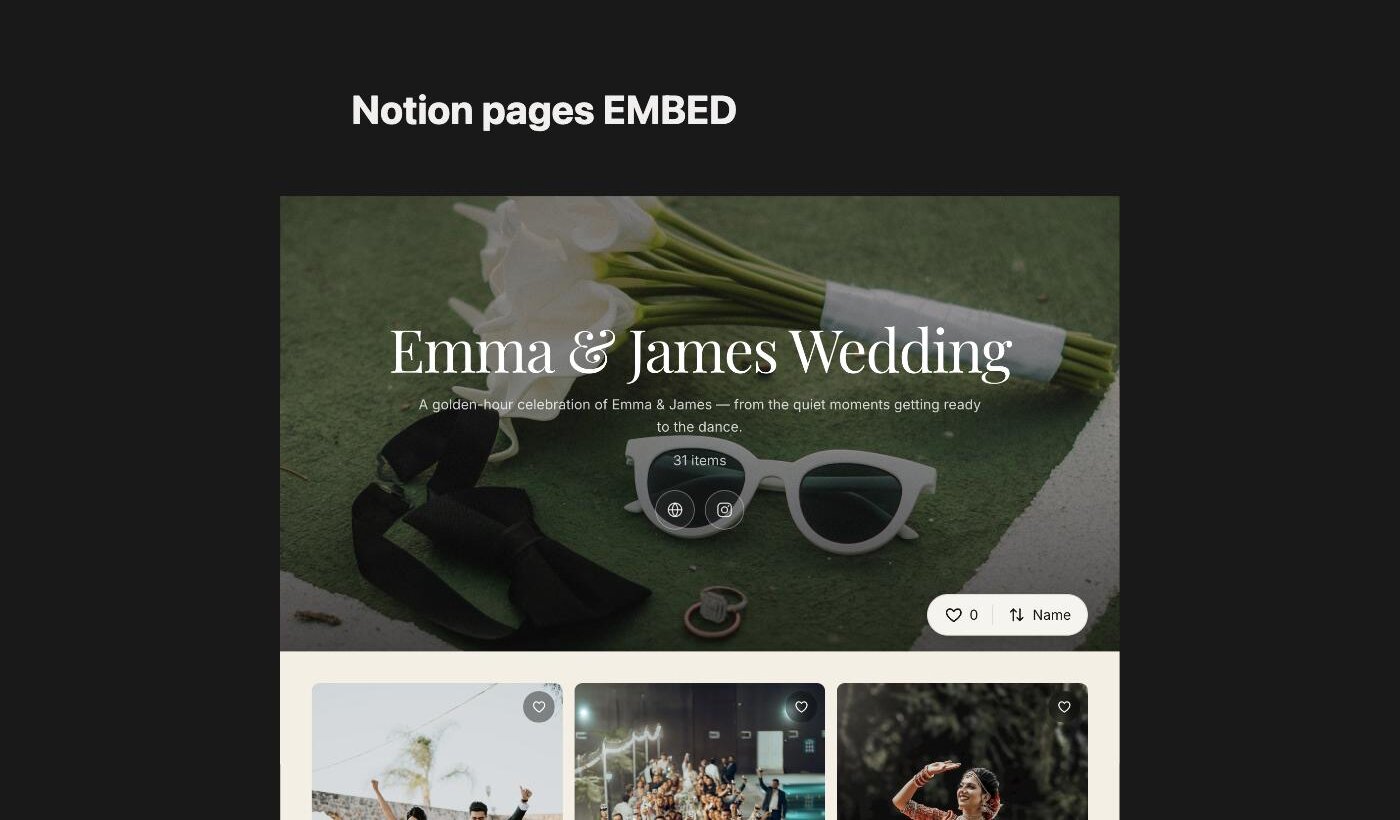
A real GalleryLink gallery embedded in a published Notion page.
Table of Contents
- 1. Why put the gallery in the portal
- 2. How to embed a gallery in Notion
- 3. Sizing it so it looks right
- 4. What your client sees on a published page
- 5. Add a normal link too
- 6. It shows a link card instead: how to fix it
- 7. Private and password-protected galleries
- 8. A simple client portal layout
1. Why put the gallery in the portal
A client portal works because everything is in one place. When the gallery lives in a separate email, it is the link clients lose, search for months later, and ask you to resend. Embedding it in the portal keeps the delivery next to everything else from the job, and the portal becomes the page the client bookmarks.
2. How to embed a gallery in Notion
- Copy the gallery link. Use the normal client link to the gallery, the same one you would send by email.
- In your Notion page, type
/embedand press Enter. Notion's help describes this as inserting an embed block, where you can paste a URL. - Paste the link and choose Embed link. The gallery loads live on the page.
If you paste a link straight into a page instead, Notion shows a small menu; choosing bookmark gives you a link card rather than the live gallery. Using /embed first avoids that.
On GalleryLink, every client gallery link can be embedded: links on gallerylink.live, your studio address (yourname.gallerylink.live) and your own custom domain.
3. Sizing it so it looks right
Notion's help explains that you can hover over an embed and drag the black bars on its sides to resize it. Two tips:
- Go wide. Make the embed as wide as the page allows, so photos are large enough to enjoy. If your page is set to full width in Notion, the gallery gets more room too.
- Show the cover and the first row. Make it tall enough that the cover photo and the first row of photos are visible without scrolling, so the client immediately sees it is their gallery.
4. What your client sees on a published page
When you share or publish the Notion page, your client sees the gallery live, with its cover and photos, and can scroll through it right there. On a published Notion page, clicking the embed opens Notion's own enlarged view of it, a bigger window over the page that gives the gallery more room.
Open the published page yourself in a private browser window before sending it, so you see exactly what your client will see.
5. Add a normal link too
An embed is a window into the gallery, inside someone else's page. It is perfect for browsing, but for the full experience (full-screen viewing, favourites, downloading every photo they want) the gallery is better in its own tab. So right under the embed, add a plain link:
Open your full gallery in a new tab: [gallery link]
Clients who just want a look use the embed; clients who want to download everything use the link. It costs one line and saves a support email.
6. It shows a link card instead: how to fix it
If you see a card with a title, a thumbnail and the address, rather than the live gallery, there are two causes:
- It was pasted as a bookmark. Delete the block, type
/embed, paste the link again and choose Embed link. - The site doesn't allow embedding. Notion's help puts it plainly: some websites prohibit their content from being embedded elsewhere, and you'll see a Failed to load error. Many gallery sites block embedding for security. GalleryLink galleries are built to be embeddable, so if you still see a card, try pasting the link into a new embed block, as Notion sometimes remembers its earlier result for the same link.
7. Private and password-protected galleries
Browsers restrict cookies inside embeds from other sites, and password pages and saved favourites rely on them. So a password-protected gallery may not unlock inside a Notion embed, and favourites picked inside an embed may not be remembered. For galleries that need a password, link to them rather than embedding them, and share the password separately. Our guide to password-protecting client galleries covers how to share passwords well, and keeping Drive folders private covers the Drive side.
One more practical note for a portal you will keep for years: the gallery link has to keep working for the embed to keep working. On GalleryLink's free plan, a new gallery stays online for clients for 3 days; to keep an embedded gallery online, keep that gallery for $10 once, or use Pro, where every gallery stays online. Our guide to how long client galleries should stay online covers the policy side.
8. A simple client portal layout
If you are building the portal from scratch, this order works well for most photographers:
- Welcome: a short note and the key dates.
- Before the shoot: the questionnaire, the timeline and what to wear.
- Paperwork: contract and invoice.
- Your gallery: the embed, with the "Open your full gallery" link underneath.
- After delivery: how long the gallery stays online, how to order prints or an album, and how to leave a review.
Embedding the gallery turns the portal from paperwork into the place the client comes back to. If you'd like to try it, make a sample gallery in about a minute and paste its link into a Notion /embed block.