How to Add a Photo Gallery to Your Vacation Rental or Hotel Website (2026)
Put a fast, always-current photo gallery on your vacation rental or hotel website: what a good property gallery contains, the options compared, step-by-step setup from Google Drive, and notes for Lodgify, Guesty, Hostaway, Squarespace, Wix and WordPress.
Short answer
Keep your property photos in one Google Drive folder per property, with a subfolder per part of the stay, turn it into a gallery, and paste its embed code into an HTML or custom code block on your website. The gallery updates whenever you change the folder, opens full-screen on phones, and keeps your order and captions.
Guests decide whether to book with their eyes. On Airbnb or Booking.com your photos sit in a template everyone else uses, but on your own website they do the selling on their own, and that's the page where a guest books without paying a platform's commission. Yet on many vacation rental and small hotel websites the gallery is the weakest part: a handful of old photos, a slider that's slow on phones, and pictures that were last updated before the renovation.
This guide shows how to put a proper photo gallery on your vacation rental or hotel website, one that's quick to update, works on phones, and stays the same everywhere you share it. It covers what a good property gallery contains, the options compared, step-by-step setup, notes for direct-booking platforms such as Lodgify, Guesty and Hostaway, and the mistakes that cost bookings.
- Why your own website's gallery matters
- What a good property gallery contains
- Your options, compared
- Step by step: a gallery fed from Google Drive
- Direct-booking platforms: Lodgify, Guesty, Hostaway
- Squarespace, Wix and WordPress
- Several properties, or a hotel with many room types
- Keeping photos up to date
- Speed, search and the text around your gallery
- Privacy and safety
- Mistakes that cost bookings
Why your own website's gallery matters
Most guests find you on a listing site first, then look you up. When they land on your own website they're comparing: is it the same place, does it look as good, can I trust booking here? A thin or outdated gallery sends them back to the platform they came from, where you pay commission on the booking.
- Direct bookings depend on it. Your website has to show the property at least as well as the listing sites do, or guests have no reason to book direct.
- Repeat and referred guests land there. Past guests and their friends usually search your name, not the platform.
- Owners, partners and event clients look too. Property owners, travel agents and wedding planners judge a property from its website.
What a good property gallery contains
The best rental and hotel galleries follow the way a guest walks through the property. A practical order:
- The hero shot: the view or the exterior that sells the stay.
- Living spaces: living room, dining, kitchen.
- Bedrooms: each one, with the bed made and the light on.
- Bathrooms.
- Outdoor spaces: pool, terrace, garden, balcony.
- Details: the coffee machine, the reading corner, the welcome basket.
- The area: the beach, the village, the trail from the door.
Some practical rules:
- 25 to 40 photos per property is enough for guests to feel they've seen everything. Fewer looks thin; many more and nobody gets to the end.
- Group them into sections (Bedrooms, Pool, The area) so guests can jump to what they care about.
- Caption the useful facts: "Bedroom 2 · twin beds, can be joined", "Pool · heated May to October". Captions answer questions before they're asked.
- Landscape for rooms, portrait sparingly. A grid of mostly landscape photos looks calm on every screen.
- Same season, same light. A summer pool next to a winter garden makes guests wonder which one they'll get.
Your options, compared
| Option | Updates easily? | Same photos everywhere? | Things to know |
|---|---|---|---|
| Your website builder's own gallery | No: re-upload every change | No | Looks native; becomes out of date the moment you renovate |
| Your booking platform's property photos | Within that platform | Only on the platform's own site | Usually a simple slider, few layout choices |
| A link to a Google Drive folder | Yes | Yes | Opens Drive's file list, not a gallery; no captions or order |
| A paid gallery widget | Varies | Varies | Monthly fee per widget; check how photos get in |
| An embedded GalleryLink gallery from Drive | Yes: change the folder | Yes: one gallery for website, email and messages | Free galleries are shared for 24 hours; a gallery that lives on your website needs Pro |
The point of the last option is that the photos live in one place, a Google Drive folder you probably already have from your photographer, and every copy of the gallery (on your website, sent to an owner, shared with a travel agent) shows the same, current set.
Step by step: a gallery fed from Google Drive
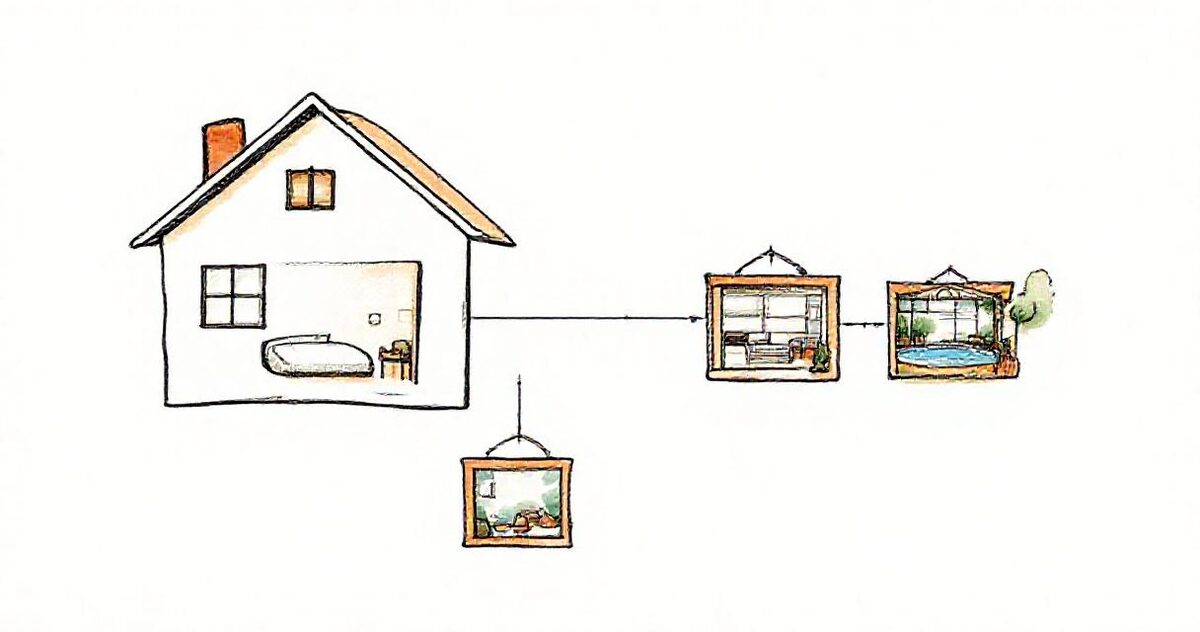
- Make one folder per property in Google Drive, for example Villa Mar · Website.
- Add subfolders for sections, numbered in walk-through order: 01 Outside, 02 Living, 03 Bedrooms, 04 Pool, 05 The area. Each subfolder becomes a section of the gallery.
- Put only your finished, website-ready photos in it. Keep the full shoot and unedited files in a separate folder.
- Share the folder as "Anyone with the link" (Viewer).
- Create the gallery by pasting the folder link into GalleryLink. Choose a grid layout and a theme that matches your website, and turn downloads off: this is a showcase, not a delivery.
- Order photos and add captions in Arrange & details: drag the hero shot to the front, then write a short title for each photo that needs one. You can also add a business info header with your address, phone, check-in hours and a "Book now" link.
- Open Share › Embed, choose a height (medium suits most pages, tall if the gallery is the main content), and copy the code.
- Paste it into your website in an HTML or custom code block (see the platform notes below), publish, and check the live page on your phone.
The embedded gallery shows just the photos, opens each one full-screen with swipe on phones, and keeps the sections, order and captions you set.
Direct-booking platforms: Lodgify, Guesty, Hostaway
Many vacation rental websites are built inside the booking software. Menu names change between versions, so treat these as pointers and check your dashboard.
- Lodgify: Lodgify's website builder has a Custom HTML section for third-party code. Add it to the page where the gallery should appear, paste the embed code, and publish. Lodgify shows embedded content on the live site rather than in the editor preview, so check the published page.
- Guesty: Guesty's website builder offers custom HTML on its advanced editor, and the booking engine has a custom code option. If you're on the basic editor, link a "See all photos" button to the gallery instead.
- Hostaway: Hostaway's booking website and widgets are built to be embedded in other sites, and guests finish their booking on Hostaway's own pages. For your gallery, either add it to the Hostaway website where custom content is available, or put it on your main website next to the Hostaway booking widget.
- Any other platform: look for a block called HTML, Embed, Custom code or Raw HTML. If there isn't one, link a button or a photo to the gallery's own address; it opens as a full-screen gallery on its own.
Keep the booking widget and the gallery as separate blocks on the page: booking platforms often need their own widget code, and some can't run inside another frame.
Squarespace, Wix and WordPress
If your property website is on a general website builder, the gallery goes in a Code block (Squarespace), an Embed HTML element (Wix) or a Custom HTML block (WordPress). Some plans strip embedded code, and some editors only show it on the published page. Our guide to embedding a Google Drive gallery on your website has the exact steps for each builder, plan limits and troubleshooting.
Several properties, or a hotel with many room types
- One gallery per property. Each property's page gets its own gallery, so a guest looking at the beach house never scrolls through the city flat.
- Hotels: one section per room type (Classic Double, Sea View Suite, Family Room), plus sections for the restaurant, spa and event spaces. Number them so they appear in the order you want.
- A separate "The area" gallery you can reuse on every property page.
- Events and weddings: a dedicated gallery of real events held at the venue is what planners and couples look for. Keep it separate from the room gallery.
- Partners and travel agents: send the same gallery link, or build a hotel photo media kit with downloads switched on.
Keeping photos up to date
The gallery on your website shows whatever is in the Drive folder, so updating it is a file job, not a website job:
- After a renovation or a new shoot: replace the photos in the right subfolder. The website updates within a minute; nobody needs to log in to the website builder.
- Seasonal photos: keep a Summer and a Winter set in separate folders and swap which one is in the website folder when the season turns.
- Staff can help: anyone with edit access to the folder can update the gallery, without access to your website or booking system.
- Archive, don't delete: move old photos to an archive folder in case you need them for an insurance claim or a before-and-after.
Speed, search and the text around your gallery
- Write your own text above the gallery. A short paragraph per property (sleeps 6, three bedrooms, ten minutes to the beach) is what Google reads and what answers a guest's first questions. The gallery shows; your text tells.
- Use real headings on the page, such as "Photos of Villa Mar", so the section is clear to people and search engines.
- Keep the page light. The embedded gallery loads previews sized for the screen rather than full-size originals, which keeps phones fast. Avoid stacking several sliders and videos on the same page.
- Name your files sensibly before uploading ("villa-mar-pool-terrace.jpg") so captions start from something meaningful.
Privacy and safety
- No guests in website photos unless you have their written permission.
- Leave out door codes, key safes and alarm panels, and blur house numbers if your listing hides the exact address until booking.
- Remove location data from photos if the exact address is private; see how to remove location from photos.
- The gallery only shows the folder you choose. Visitors can't browse the rest of your Drive.
Mistakes that cost bookings
- Photos older than the property. Guests notice the old sofa on arrival and say so in the review.
- Only showing the best room. If one bedroom is small, show it; surprises cost more than honest photos.
- A slider with arrows on a phone. Guests on phones want to swipe through a full-screen gallery, not tap tiny arrows.
- No captions. "Which bedroom is the twin?" should be answered by the photo, not by an email.
- The gallery is the whole page. Add the key facts and a clear way to book next to it.
- A password on a website gallery. Browsers block password screens inside another website, so the embed shows an "Open the gallery" button instead. Keep website galleries without a password.
Which plan this needs
You can build and try a gallery for free. A free gallery is shared for 24 hours, so a gallery that lives on your website permanently needs Pro, which also adds item titles and descriptions, the business info header and gallery stats. If you manage many properties from one Google Drive, Studio adds bulk creation of up to 50 galleries at once and a month-by-month dashboard. Everything on each plan is on the pricing page.
Related: GalleryLink for vacation rentals and hotels, vacation rental marketing with photos and a self-updating photo gallery for your business website.