Grouped by season
'2026 season', 'Spring 2026', 'Year 5': whatever you write in a gallery's short line becomes its group on the home page.
Event & season hub
A season is forty galleries and a thousand parents who all want the same thing: find my child's photos, now. The Season design gives them one address. Galleries are grouped by season or year, the search box takes a team, a class, a surname or a photo number, and every photo carries the number families quote when they order.
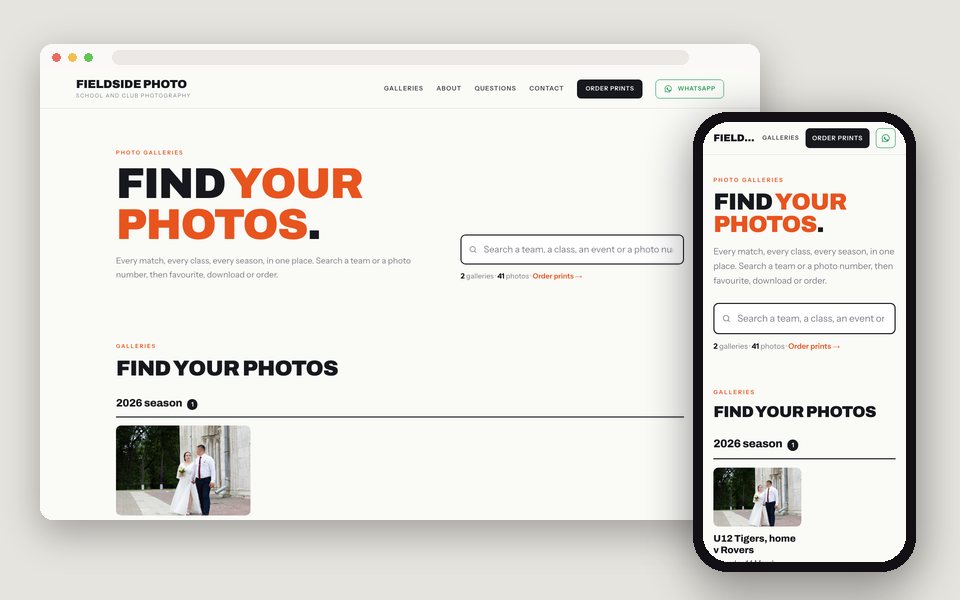
Keep making one gallery per match, class or event; put the season or year in each gallery's short line. Choose Event & season hub and the Season design in Website, add your order link, and publish. Families search a team or a photo number on the home page, open the event, and go on to favourite, download or order in the gallery.
One site that lists every gallery by season, team or class, with search by name, team or photo number.
'2026 season', 'Spring 2026', 'Year 5': whatever you write in a gallery's short line becomes its group on the home page.
The search box covers every gallery's name, sections and photo numbers (#23, or 423 for IMG_0423).
Every photo shows its number on the card and in the detail view, so an order email says exactly which frame.
Order prints, Buy downloads: your print lab or order form, on every page.
The event page lists its subfolders as jump links, so a parent lands on the right team.
Black capitals and one bright accent: Orange, Blue, Green or Night.
U12 Tigers v Rovers; Year 5 class portraits. One folder each, subfolders per team or class.
'2026 season' or 'Spring 2026' in the gallery's short line in the Website editor; that's the grouping.
In Dashboard → Website. Add the order link and your contact details.
The club newsletter, the school's site, a QR code on the pitch board. The same address every week.
Build and preview the site free, with no card. Publishing is part of Pro, $8/mo or $80/yr, with unlimited galleries, every design and theme, and your own domain. There is no charge per site, per page or per item.
See full pricing →They open the gallery from the hub, where favourites, downloads and your order link work as they do today. The hub is the front door.
Yes. Password-protected galleries never appear on the website. Show the public ones; keep school-only galleries behind a password and send the link directly.
Every gallery you tick in the Website editor. Group them by season so a long list stays readable.
Leave the galleries ticked and they stay listed under last year's group, or untick them to retire them from the hub.
Pro or Studio publishes the website. Pro has no gallery limit, which a season needs.
Paste a Google Drive folder, pick what the site is for and a design, and preview it with your own photos. Free to start, no credit card.
Start freeOpen the Website editor