How to Deliver Photos to Every Family on a Team or in a Class (2026)
Team portraits, league seasons and school picture days all end the same way: dozens of families, and each should see only their own child. A practical workflow for one private gallery per player, class or family: folder structure, naming, consent, QR cards on the day, and message templates.
Short answer
Sort the shoot into one folder per player, class or family, turn each folder into its own private gallery, and send each family only their link, by message or as a QR code card on the day. Keep children's full names out of gallery titles, get parental consent before the shoot, and add a password to any gallery that shouldn't travel beyond the family.
Some shoots end with one client. Team portraits, league seasons and school picture days end with forty: forty families who each want their own child's photos, quickly, and who generally should not see everyone else's children. The photography is the easy part. The delivery is where the evenings go.
This guide is a practical workflow for delivering a private gallery to every player, class or family: how to structure the folders, how to name things safely, what to sort out about consent before the day, how to get each family their link (including QR cards), and the messages to send.
Table of Contents
- 1. One gallery for everyone, or one per family?
- 2. Before the shoot: consent and names
- 3. A folder structure for forty families
- 4. Turning folders into galleries
- 5. Getting each family their link
- 6. Keeping galleries private
- 7. A realistic timeline
- 8. Message templates
1. One gallery for everyone, or one per family?
| One gallery for the team or class | One gallery per child or family | |
|---|---|---|
| Best for | Match action, team photos, events everyone attended | Individual portraits, school photos, player headshots |
| Who sees what | Everyone sees every child | Each family sees only their own child |
| Links to send | One | One per family |
| Finding their child | Parents scroll and search | Already done for them |
Many photographers combine the two: one team gallery for the game, shared in the team chat, and a private gallery per player for portraits. Our guide to sharing team photos with parents covers the team-gallery side; this guide is about the per-family side.
2. Before the shoot: consent and names
Photographing children comes with responsibilities that are worth settling before the day, not after.
- Consent. The NSPCC's guidance for sport is clear that for children under 16, consent must be obtained from a parent or carer before taking any photos or videos. Schools and clubs usually collect this already; ask for their list and their photography policy.
- Names. The same guidance recommends removing children's names when images are published. For delivery, that means keeping full names out of gallery titles and links: a first name, initials or a shirt number is enough for the family to recognise it.
- Retention. The NSPCC also suggests telling families how long you will keep the images and what happens after. Our guide to how long client galleries should stay online helps you choose.
3. A folder structure for forty families
The structure you set up for the shoot becomes your delivery list, so get it right once:
Clients/
  2026-10 Riverside Juniors U12/
    01 Team photo/
    02 Players/
      #4 Sam/
      #7 Ava/
      #10 Leo/
      ...
For a school, swap players for classes and families. Two habits save hours:
- Shoot a marker frame before each child (their name card or number), so splitting the card into folders afterwards is mechanical.
- Export straight into the folders from Lightroom. Our Lightroom to Google Drive workflow shows how to export into a synced folder so there's no separate upload step.
4. Turning folders into galleries
Each family folder becomes one gallery. With Google Drive, share each folder as "Anyone with the link"; Google's help explains that people with the link can then open it without signing in to a Google Account. You can send those folder links as they are, or put a gallery in front of each one so families get a proper gallery instead of a file list.
On GalleryLink, you paste each folder's link and pick a look, which takes about a minute per gallery, and the gallery stays in sync if you add or swap photos. Pro has no gallery limit, so a gallery per player costs the same $5 a month as one gallery, and Drive-linked galleries don't use storage, so a large school day doesn't push you into a higher tier.
5. Getting each family their link
- By message or email. Send each family their own link. Never paste every family's link into a shared group chat.
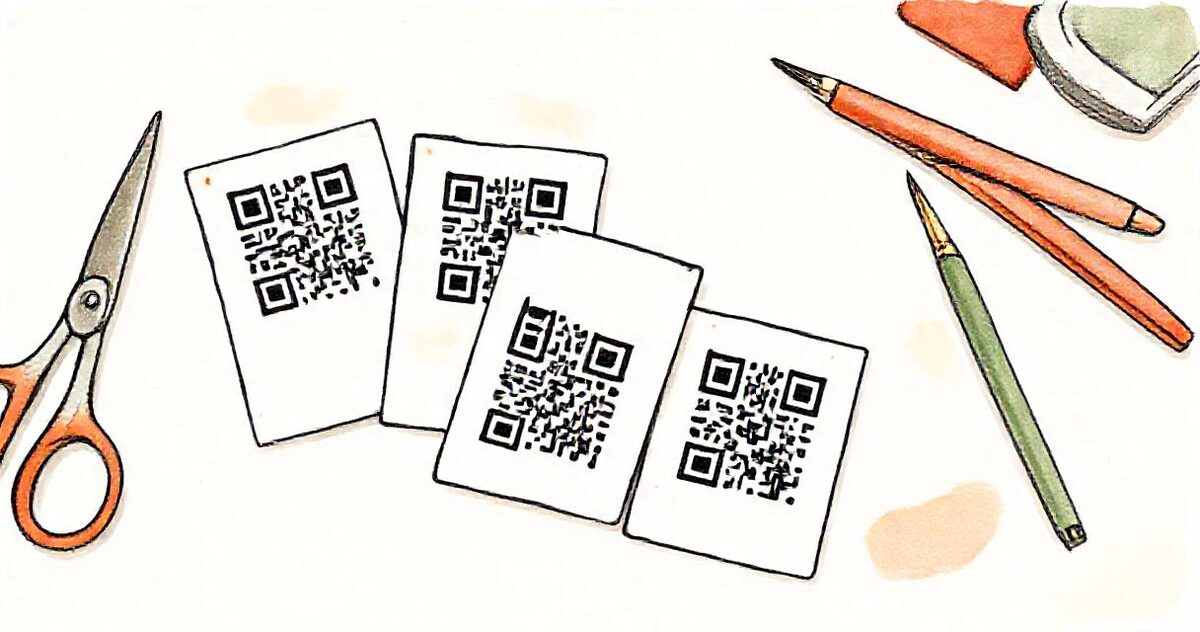
- QR cards on the day. Print a small card per child with their gallery's QR code and hand it over at pickup. It is faster than typing forty emails and the link can't get lost in a chat. On GalleryLink, every gallery has its own QR code.
- Through the school or club. Some schools prefer to forward links themselves. Give them a simple list of child (by first name or number) and link.
6. Keeping galleries private
Per-family galleries are private by design, because each family only has their own link. Three extra steps make them more so:
- Use unguessable links, not ones built from a child's name.
- Add a password for anything sensitive, and send it separately from the link. Our password guide covers how.
- Ask families not to repost other children. The NSPCC guidance suggests asking parents not to share photos on social media that could identify other children.
7. A realistic timeline
- Before: consent list from the school or club, folder structure ready, QR cards printed if you're using them.
- On the day: marker frame before each child.
- That evening: import, split into folders by marker frames, back up.
- Within a few days: edit, export into the family folders, create the galleries, check a few on your phone.
- Delivery: send each family their link, with how long it stays online.
8. Message templates
To each family
Hi [parent name], [child's first name]'s photos from [event] are ready: [link]. Tap any photo to see it full size and use the download button to save your favourites. The gallery stays online until [date].
To the school or club
All the galleries from [event] are ready. Each family has their own private link, listed below by [first name / shirt number]. Please forward each link only to that child's family.
If most of your work is teams, leagues and school days, our page for school and league photographers shows how per-family galleries, QR codes and passwords fit together. You can try it with a sample folder in about a minute.