Describe Your Gallery’s Style in Words: AI-Designed Client Galleries (2026)
GalleryLink can now design a client gallery’s look from a sentence (“an old newspaper”, “1920s art deco”) or a reference image, and you can set the whole gallery up by talking it through. How it works, what a style can change, prompt ideas that work, and what stays the same for your clients.
Short answer
In GalleryLink you can now describe the look you want for a gallery in plain words, such as “an old newspaper” or “a quiet Japanese look with lots of white space”, or upload a reference image, and a complete style is designed in a few seconds: colours, typefaces, a header, frames, a photo treatment and texture. You see it on your own photos straight away and can adjust it in words (“less yellow”). It sits inside “Make it with me”, a new way to set up a gallery by answering a few questions. Anyone can design and preview a style; keeping one is part of Pro.
Most client galleries look alike, because most gallery tools give you the same handful of themes. That’s fine until a couple who met at a vintage car rally asks for something that feels like them, or you shoot a speakeasy-themed party and the gallery looks like every other wedding. Today GalleryLink can design a gallery’s look from a sentence or a picture, and you can set the whole gallery up by talking it through. Here’s how it works, what it can and can’t do, and how to get good results.
Table of Contents
- 1. “Make it with me”: setting up a gallery by talking it through
- 2. Describing a style in words
- 3. Designing from a reference image
- 4. What a style can change
- 5. Prompt ideas that work
- 6. What stays the same for your clients
- 7. Free, Pro, and where to find it
1. “Make it with me”: setting up a gallery by talking it through
The usual way to make a gallery is a form: title, folder link, theme, cover, settings. “Make it with me” asks the same things as a conversation, one question at a time, while the gallery builds itself next to it.
- The name. Whatever you type becomes the gallery’s heading, exactly as you wrote it.
- The photos. Paste the link to the Google Drive folder. Your photos appear in the preview as soon as the folder opens. If it isn’t shared yet, it tells you how to fix that and checks again on its own.
- The look. Pick one of the ready-made looks, or describe your own (more on that below). The whole page changes as you choose.
- The cover. Tap the photo that should open the gallery.
- Go live. One more answer and you get the link, a message to send your client, and the gallery itself.
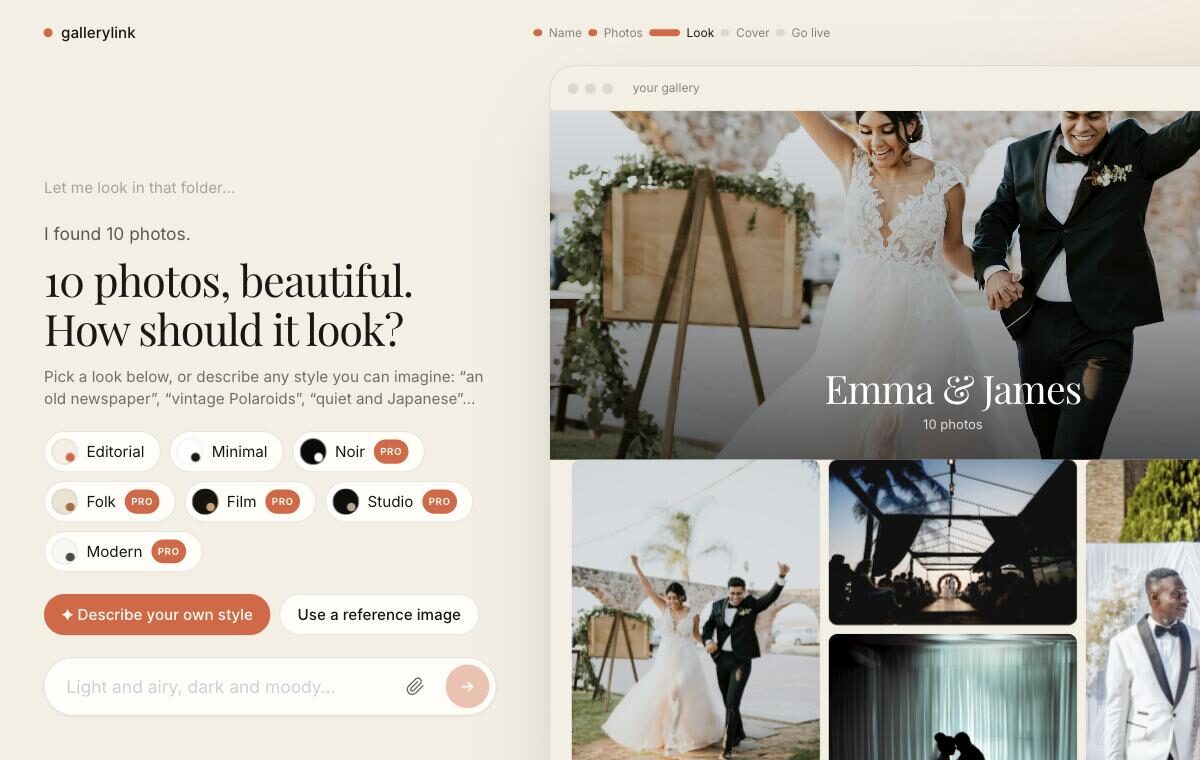
You can start it from New gallery in your dashboard, or from the home page without an account. If you start from the home page, the account comes last: everything you’ve set up waits for you while you sign up, and the gallery goes live as soon as you’re back.
2. Describing a style in words
On the look step, tap Describe your own style and write what you have in mind. A style is designed in a couple of seconds and shown on your own photos. If it’s nearly right, say what to change: “less yellow”, “keep the photos in colour”, “no texture”, “bigger title”. Everything you didn’t mention stays as it was.
These are real results from our testing. Names and details vary a little each time you ask, which is part of the point: ask again if the first one isn’t it.
| You write | You get |
|---|---|
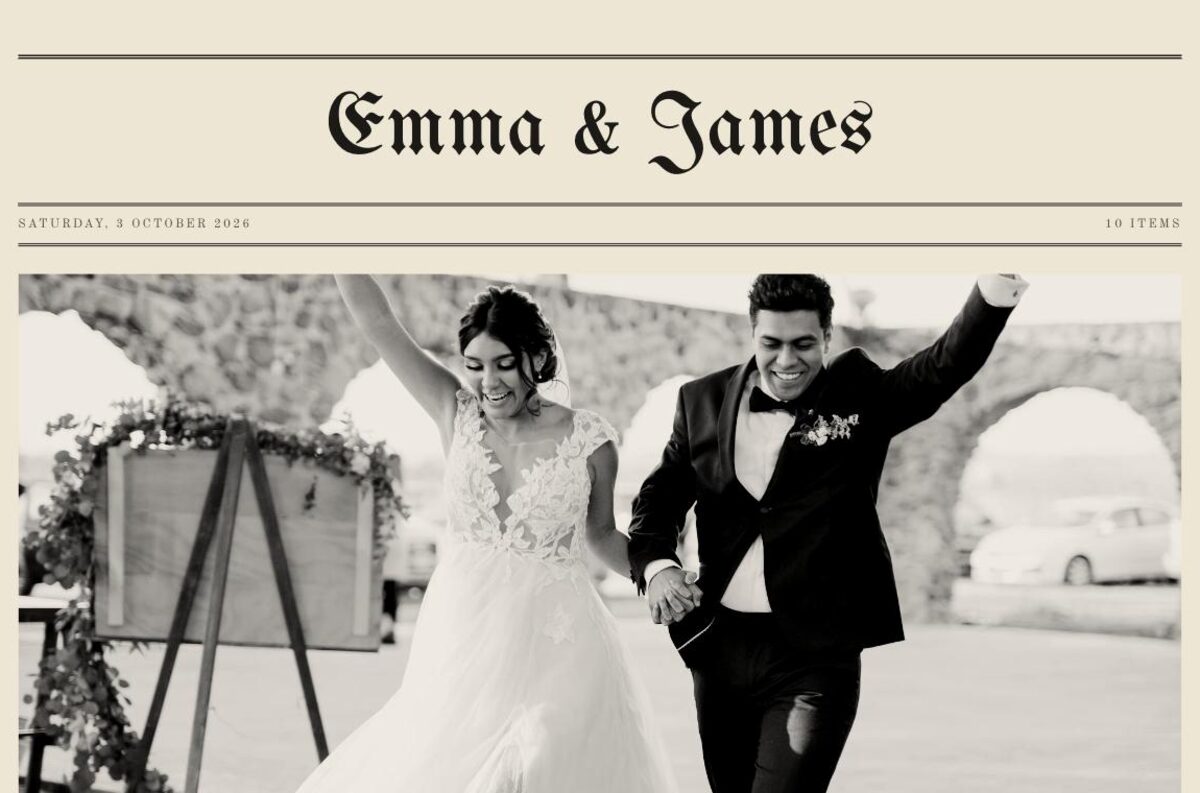
| an old newspaper | The Morning Edition: a blackletter masthead between double rules, a dateline, black-and-white photos and newsprint paper |
| like a Wes Anderson film | The Symmetry Suite: warm pastels, a bold uppercase display serif, matted photos |
| minimal Japanese, lots of white space, calm | Ma and Light: off-white paper, a delicate serif, quiet, slightly softened photos |
| 1920s Great Gatsby art deco party | Gatsby Gala Nocturne: near-black and gold, thin art deco capitals, double frames |
| a Defender car lovers wedding gallery | Expedition Wedding: stencil headings, a slab-serif body, olive and sand, matted photos |
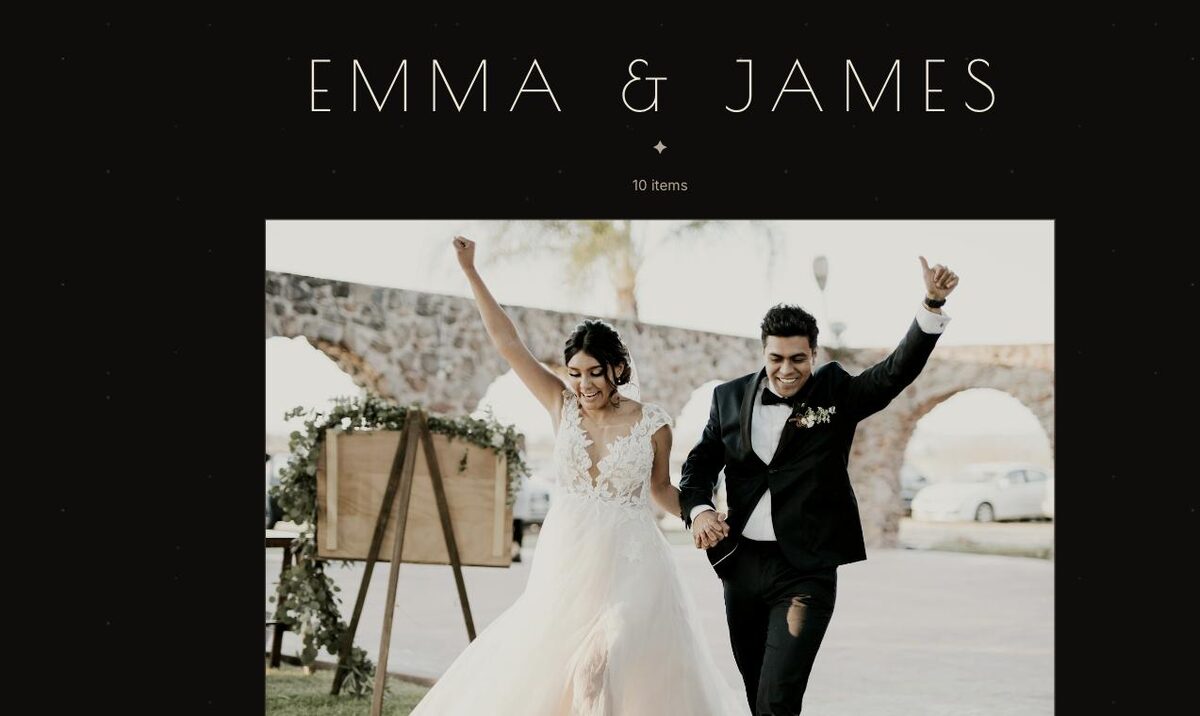
The last example matters most. When a description names something with its own visual world (a car, a sport, a place, a film, a decade), the style is built from that world’s real visual language: its colours, materials and lettering. A Land Rover Defender means utilitarian stencil type and expedition colours, not a generic elegant theme with a car in the name.
3. Designing from a reference image
Sometimes it’s easier to show than to describe. Next to the text box there’s a paperclip, and you can also drop an image anywhere on the page. Good references:
- the couple’s wedding invitation or stationery
- a moodboard or a Pinterest screenshot
- a brand’s colour sheet for a commercial shoot
- a photo of the thing that matters to them, like their car, their venue or their dog
The image is studied for its subject, mood, materials and lettering, and the colours are measured from the pixels themselves, so the palette really is the palette in your picture. You can add a few words with it, like “but darker” or “for a muddy mountain elopement”, and your words take priority over the image. The reference is used once to design the style and isn’t saved anywhere.
4. What a style can change
A style is more than a colour swap. It can set:
- Colours for the page, the text, buttons, panels and lines.
- Type from 16 typefaces, from editorial serifs and a fine Garamond to blackletter, typewriter, stencil, art deco, script and handwriting, with the heading’s weight, spacing and capitals.
- The header: the cover photo full-bleed with the title over it, the title above a framed cover, the title alone, or a newspaper-style masthead with a dateline.
- Rules and ornaments around the title.
- A photo treatment: black and white, sepia, contrast, saturation, warmer or cooler.
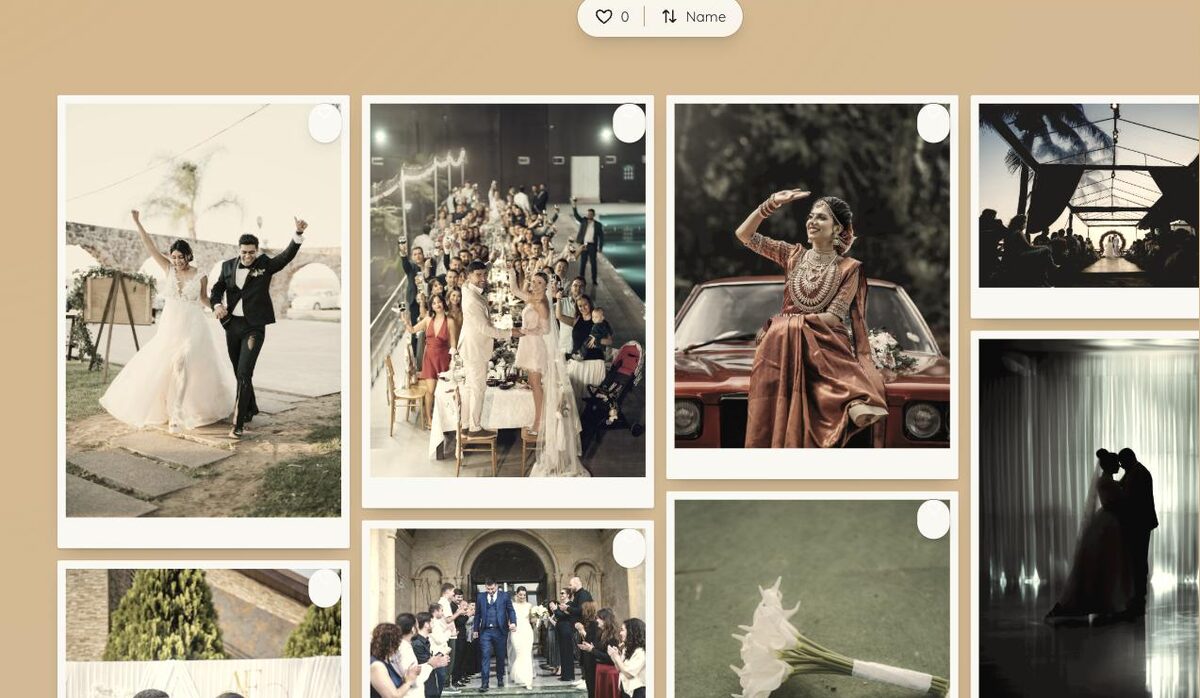
- Frames around each photo: a hairline, a Polaroid, a mat, a soft shadow or a double rule, and the corner rounding.
- A surface texture: paper, newsprint, linen or film grain.
- Slow background motion, when it suits the idea: drifting topographic map lines for adventure shoots, a light sweep for cars and products, warm film light leaks, dust in the light, soft bokeh, stars, or drifting petals.
5. Prompt ideas that work
The best descriptions are specific about the world the gallery belongs to, not just adjectives. Some patterns that work well:
- Name a place, era or object: “a 1950s Italian espresso bar”, “a Scottish bothy in winter”, “a 90s disposable camera”.
- Name materials: “linen, dried flowers and handwritten labels”, “matte black metal and concrete”.
- Name the client’s world: “a vineyard harvest”, “a rugby club’s centenary”, “a tattoo studio’s flash sheets”.
- Give colours if you know them: “sage and cream, calm”, “navy and brass”.
- Say what the photos should do: “keep the photos natural”, “black and white photos”, “warm like film”.
Then refine in small steps rather than starting over. “Less texture” and “photos in colour” keep everything you liked about the first version.
6. What stays the same for your clients
A custom style changes how the gallery looks, not how it works. Clients still open one link, view full-screen, favourite, select and download exactly as before, on any device, with no account. Their downloads are your original files from Drive: a black-and-white treatment on the grid doesn’t turn their downloads black and white, and the full-size view shows the true photo.
Every style is checked for readable contrast before you see it, and adjusted if the text would be hard to read. Background motion sits behind the photos and stops for anyone whose device asks for reduced motion.
7. Free, Pro, and where to find it
- Setting up by talking it through works on every plan, from New gallery or from the home page.
- Designing and previewing a custom style on your own photos is open to everyone.
- Keeping a custom style on a live gallery is part of Pro, along with the Noir, Folk, Film, Studio and Modern looks. Editorial and Minimal are free.
If you deliver from Google Drive, our guide to turning a Drive folder into a photo gallery covers sharing, sections and passwords. Or try it now: make a gallery with me, and see your own photos in a style you described.