How to Turn a Google Drive Folder Into a Photo Gallery: The Complete Guide (2026)
Everything about turning a Google Drive folder into a beautiful client photo gallery: preparing and sharing the folder, creating the gallery, themes, layouts and sections, what your client sees, privacy, sharing by link, QR code or Notion embed, keeping it in sync, and step-by-step setups for weddings, events, sports, schools, portraits, real estate, video and product catalogues.

Short answer
Put your finished photos in one Google Drive folder, share it as ‘Anyone with the link’, and paste that link into a gallery tool that reads Drive, such as GalleryLink. The folder becomes a gallery with a cover, a theme and a photo grid, subfolders become sections, and clients can view, favourite and download from one link without an account. Nothing is copied: add or remove photos in Drive and the gallery follows.
If your finished photos already live in Google Drive, you are one link away from a proper client gallery. Not a list of files called DSC_4812.jpg, but a gallery with a cover photo, your title, a clean photo grid and a viewer where clients can favourite and download, all read straight from the folder you already have.
This is the complete guide: how it works, how to prepare and share the folder, how to create the gallery and make it look like yours, what your client actually sees, how to keep it private, every way to share it, and step-by-step setups for weddings, events, sports teams, schools, portraits, real estate, video and product catalogues. The screenshots are from GalleryLink, the tool we build for exactly this.
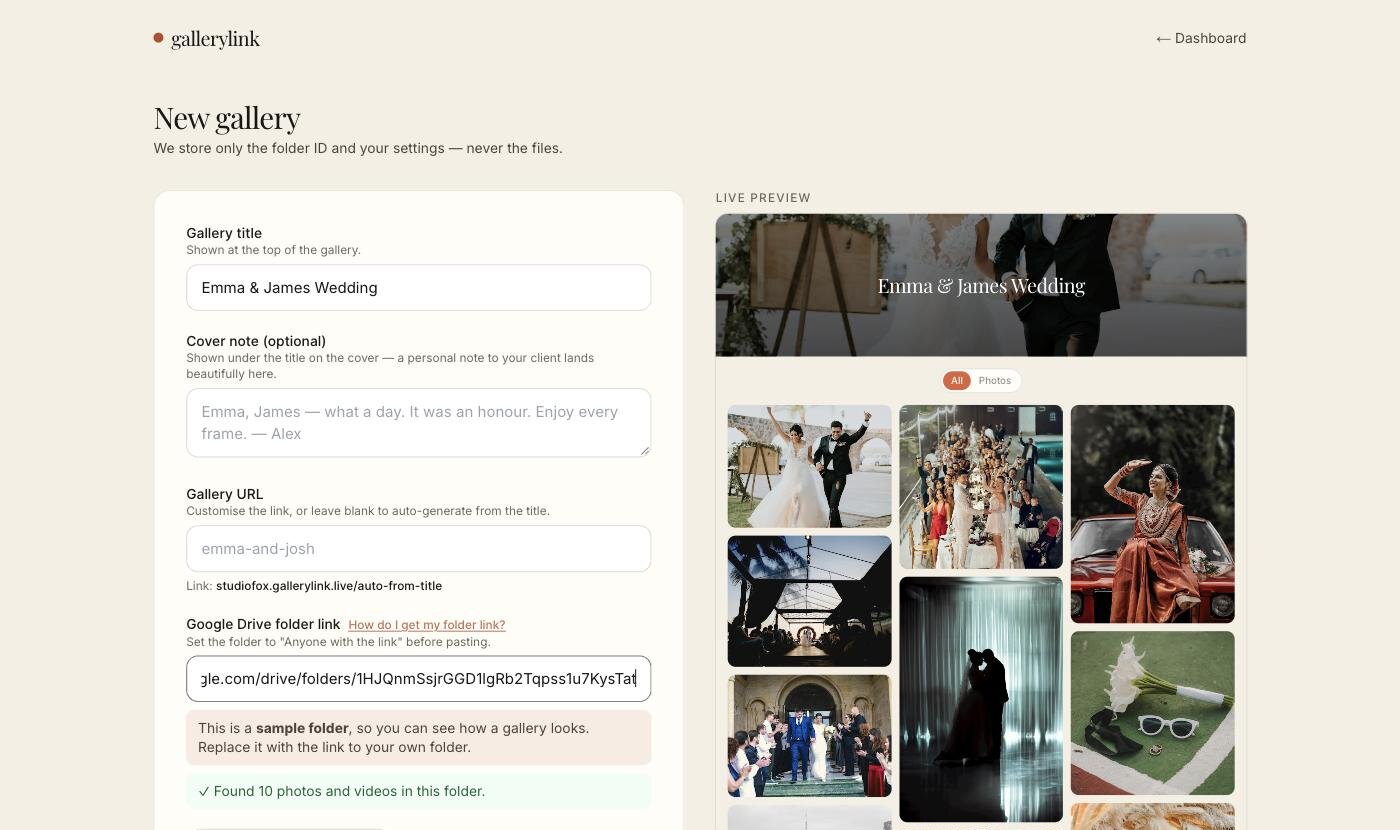
Paste a Drive folder link and the live preview fills with your photos in seconds.
Table of Contents
- 1. How a Drive folder becomes a gallery
- 2. Four ways to show a Drive folder, compared
- 3. Prepare the folder
- 4. Share the folder correctly
- 5. Create the gallery
- 6. Make it look like yours
- 7. Sections and multiple folders
- 8. What your client sees
- 9. Privacy and downloads
- 10. Sending it: link, QR code, email, embed
- 11. Keeping it in sync
- 12. Setups for every kind of shoot
- 13. When something doesn't work
- 14. Free and Pro
- 15. The whole process as a checklist
1. How a Drive folder becomes a gallery
The idea is simple. Your photos stay in Google Drive, which is already your storage and often your backup. A gallery tool reads the folder and presents it as a gallery. Nothing is uploaded twice and nothing is copied: the gallery is a different way of looking at the same folder.
That has three practical consequences. Delivery takes about a minute, because there is no upload step. A large job costs nothing extra to keep online, because the photos are in your own Drive. And the gallery stays in sync: add a photo to the folder and it appears in the gallery.
2. Four ways to show a Drive folder, compared
| Send the Drive link | Google Photos album | Gallery that reads Drive | Upload-based gallery platform | |
|---|---|---|---|---|
| Looks like | A file list | A photo album | A designed gallery | A designed gallery |
| Upload step | None | Add photos to Photos | None | Upload everything again |
| Files | Your exports | Depends on backup quality | Your exports, read live | A second copy |
| Storage cost | Your Drive | Your Google storage | Your Drive | The platform's storage tiers |
| Sections | Subfolders | No | Subfolders become sections | Usually manual |
| Client account | Not needed | Not needed to view | Not needed | Usually not needed |
Our comparison of Google Drive and Google Photos for clients covers the middle columns in depth, including the Storage saver setting that can shrink photos, and our delivery methods comparison covers WeTransfer and the rest.
3. Prepare the folder
- Export finished JPEGs, not raw files, in sRGB. Clients can't open raw files on a phone. Our Lightroom to Google Drive workflow exports straight into a synced folder so there is no upload at all.
- One folder per job, named by date and client, so it is easy to find later.
- Subfolders for parts of the day if you want sections: numbered so they sort in order, like 01 Preparation, 02 Ceremony, 03 Reception.
- Name files in the order you want them seen, or rename on export with a sequence number.
- Keep video in the same folder if you deliver both: photos and clips can sit in one gallery.
For the storage side, the complete Google Drive guide for photographers covers plans, folder structure and backups.
4. Share the folder correctly
The gallery can only read a folder that is shared. In Google Drive, right-click the job folder, choose Share, and under General access pick Anyone with the link with the Viewer role. Google's help confirms that people can then open it without signing in to a Google Account. Share the top folder of the job, not individual photos, so subfolders follow the same setting.
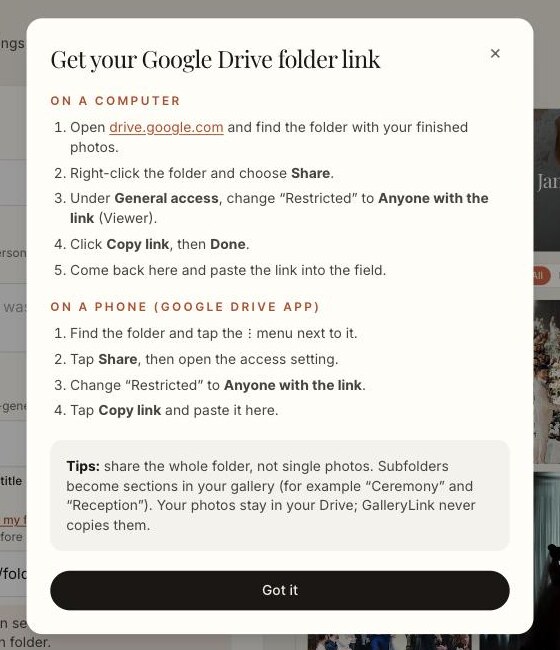
The same steps are one click away on the create page, under "How do I get my folder link?".
Copy the link from the Share dialog. A folder link looks like drive.google.com/drive/folders/…. A link to a single file, a Google Photos link or a Docs link won't work, and the create page tells you which one you pasted.
5. Create the gallery
- In GalleryLink, click New gallery and choose to link a Drive folder.
- Add a title, the name your client sees on the cover, and optionally a short cover note.
- Paste the folder link. Within a second or two you'll see one of these under the field:
- "Found N photos and videos in this folder", and the live preview fills in.
- "We can't open this folder yet": it isn't shared yet. Fix the sharing and click Check again.
- "This folder is empty": the photos are in a different folder, or the export hasn't finished.
- Choose the look (next section) and click Create gallery. You get the client link right away.
New to it? New accounts start with a sample wedding folder already in the link field, so you can see a finished gallery before using your own photos.
6. Make it look like yours
- Theme: the gallery's whole visual identity, from typography to colours. There are seven: Editorial, Minimal, Noir, Folk, Film, Studio and Modern. Editorial and Minimal are free; the rest are on Pro.
- Layout: how photos are arranged: Masonry, Grid, Large, Mosaic, Feed, Frame and Spotlight. Masonry and Grid are free.
- Cover image: pick any photo from the folder as the hero. By default it is the first photo.
- Cover note: a short personal message under the title.
- Photo animation: how photos appear as the client scrolls, or none at all.
- Your links: your website, Instagram and other links on the cover, so a gallery that gets forwarded also sends people to you.
7. Sections and multiple folders
Subfolders become sections automatically. A wedding folder with Preparation, Ceremony and Reception subfolders becomes one gallery with three named sections and a way to jump between them. This is the easiest way to organise a long delivery.
Several folders, one gallery. Sometimes the photos are in different places: a second shooter's folder, a separate video folder, an earlier event. On GalleryLink you can add up to five extra Drive folders to a gallery and choose whether each appears as its own section or merges into one stream. Our second shooter workflow uses exactly this, and our guide to multi-day wedding delivery covers when to use one gallery with sections and when to use several.
8. What your client sees
Your client opens one link on a phone or computer. No app, no account, no download before they can look.
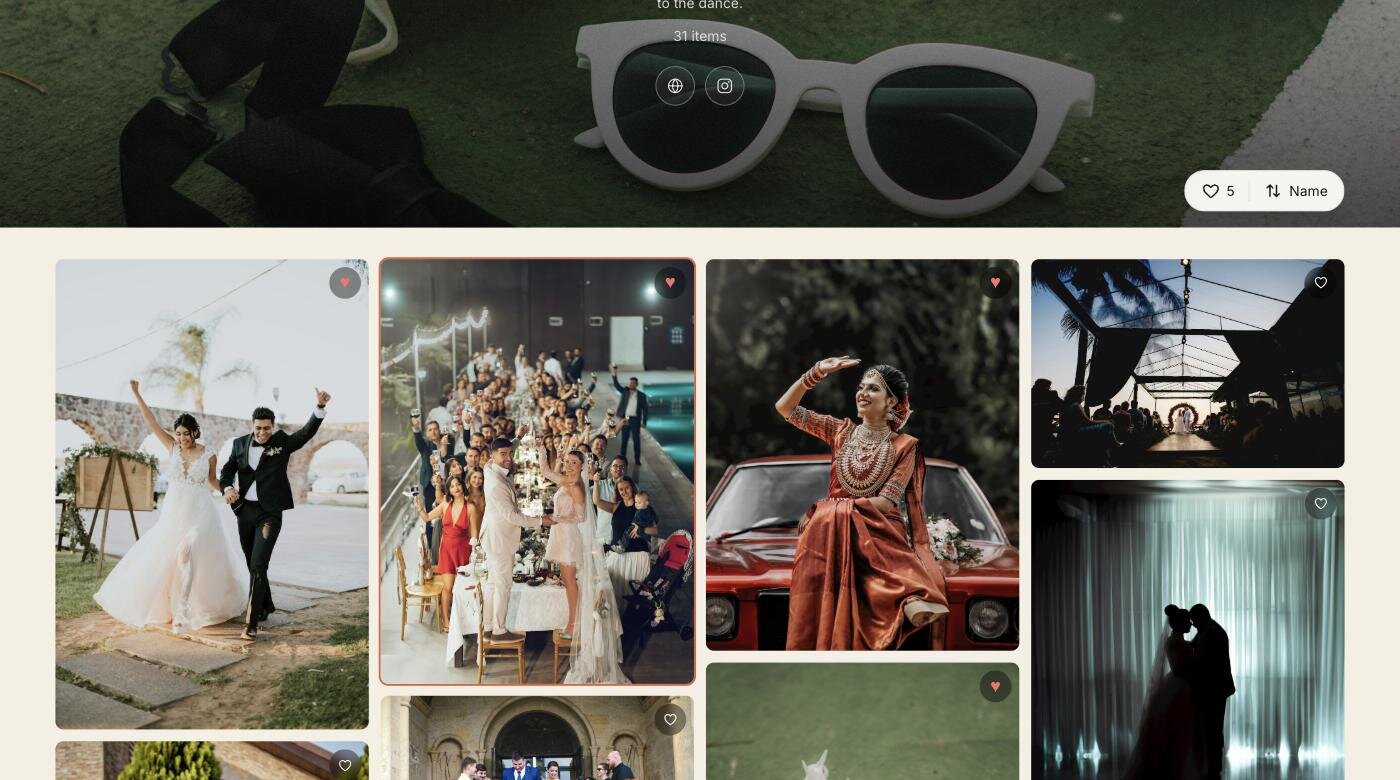
- The cover with your title, cover note and links.
- The photo grid in your chosen layout, with previews sized for fast loading even on a phone.
- Favourites: a heart on every photo builds the client's own shortlist.
- Album selection: if you turn it on, clients pick a set number of favourites and submit them, and you get the list of filenames.
- Video plays inline alongside the photos, with a filter for photos or videos.
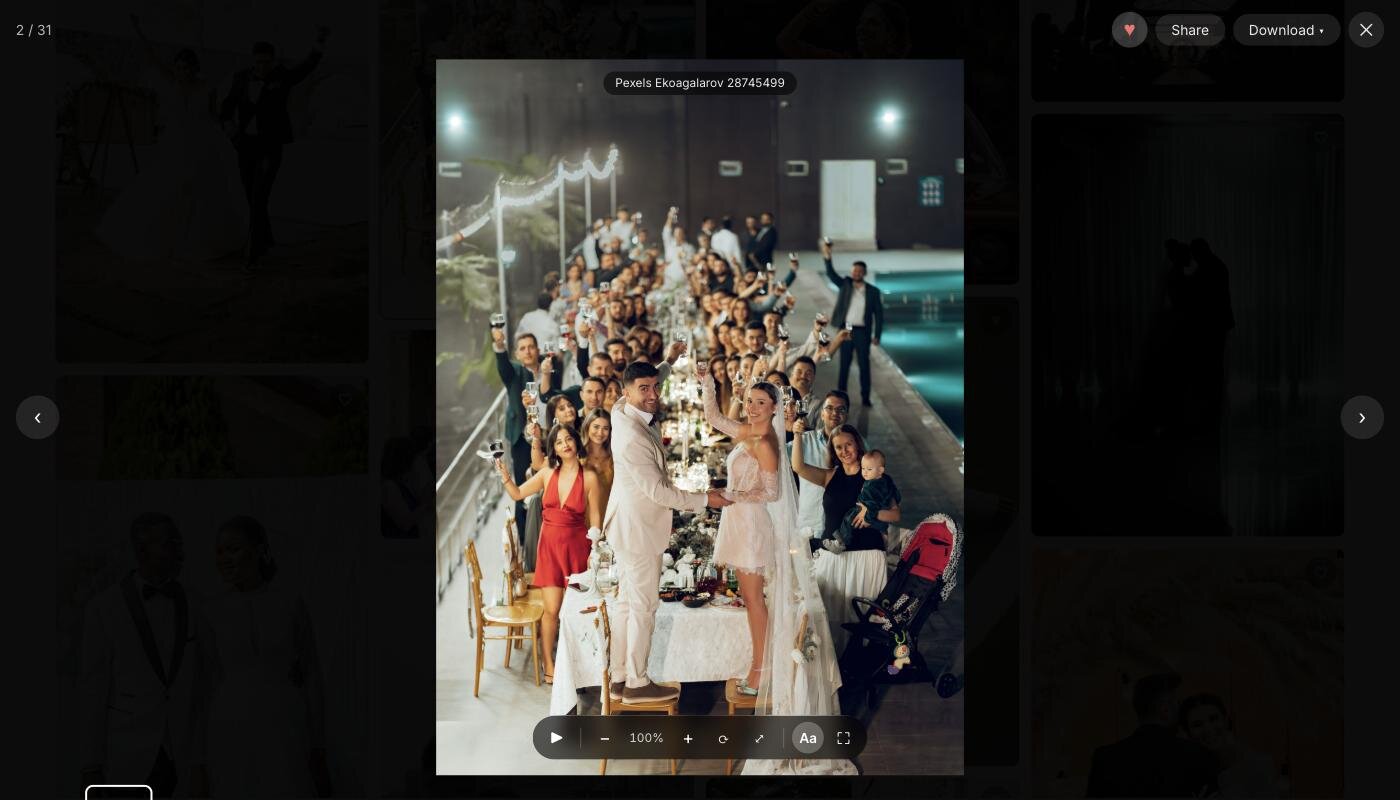
Opening a photo shows it large, with buttons to favourite, share and download:
Selections are covered in detail in our client proofing workflow.
9. Privacy and downloads
- Unguessable links, never indexed: gallery addresses aren't guessable, and GalleryLink galleries are never indexed by search engines.
- Password: on Pro, add a password to any gallery and send it separately. Our password guide covers sharing it well.
- Downloads on or off: leave downloads on for a final delivery, or turn them off for proofs.
- Email before download: on Pro, ask visitors for their email before their first download, which turns guests into leads.
One honest limit: a gallery that reads Drive can only read a folder that is shared by link, so the password protects the gallery link you send, not the Drive folder itself. For boudoir and other truly private work, upload the photos to the gallery instead. Our guide to keeping Drive photos private walks through every option.
10. Sending it: link, QR code, email, embed
- The link: copy it after creating the gallery and send it however your client prefers.
- A QR code: every gallery has one, for a card at an event, on a table or handed to a family on picture day.
- Email: on Pro, send the gallery by email from GalleryLink with a message.
- Embed: galleries can be embedded on other sites, including a Notion client portal.
- Your studio page: on Pro, show chosen galleries on your own page at yourname.gallerylink.live.
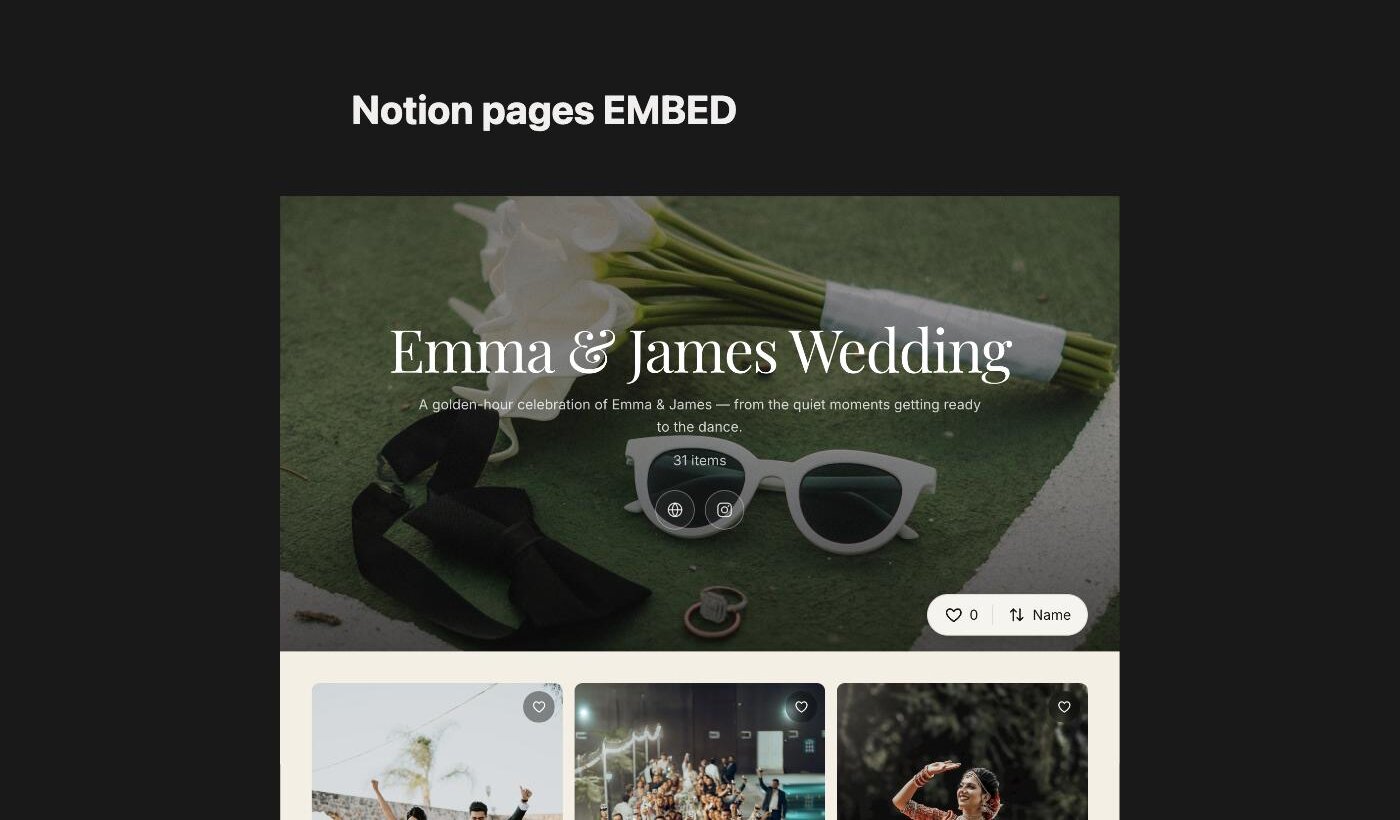
A gallery embedded in a Notion page. Our guide to embedding a gallery in Notion shows how.
11. Keeping it in sync
Because the gallery reads the folder, the folder is the one place to make changes:
- Add photos to the folder and they appear in the gallery, at the same link.
- Remove a photo from the folder and it disappears from the gallery.
- Add a subfolder and it becomes a new section, which is handy for releasing a wedding in stages.
- Don't move or unshare the folder while the gallery is in use, or the gallery can't read it.
How long the gallery should stay online is a separate decision; our guide to how long client galleries should stay online covers it.
12. Setups for every kind of shoot
| Kind of work | Folder setup | Gallery setup | More |
|---|---|---|---|
| Weddings | One folder, subfolders per part of the day | One gallery with sections, favourites and album selection, a password | Wedding photographers |
| Multi-day weddings | A subfolder per event | One gallery with sections, or one per event for private events | Multi-day guide |
| Events and corporate | One folder per event | One gallery, QR code at the venue, downloads on | Event photographers |
| Sports teams | A folder per game, or per season with a subfolder per game | One team gallery with a section per game | Sports, schools & teams |
| Schools and leagues | A folder per child, class or family | One private gallery per family, QR cards on the day | School & league photographers |
| Portraits and families | One folder per session | A gallery with favourites for picking prints | Portrait & family photographers |
| Real estate | One folder per property | A gallery per listing, downloads on for the agent | Real estate photographers |
| Video | Clips and stills in one folder | One gallery with the Photos and Videos filter | Videographers |
| Product catalogues | One folder per collection, a subfolder per category | Catalogue mode, with item names under each photo | Product catalogues, catalogue guide |
| Agencies and content teams | One folder per client or campaign | A gallery per client, kept online for re-downloads | Agencies |
| Event hosts and couples | Your own event folder | One gallery to share with guests | Event hosts, sharing with guests |
| Your portfolio | A folder of your best work | A studio page portfolio on Pro | Portfolio from Drive |
13. When something doesn't work
Almost every problem is a sharing setting. The create page tells you what's wrong when you paste the link, and for problems your client runs into later, our guide to Google Drive links that don't work for clients covers the eight most common ones: "You need access", sign-in prompts, work-account sharing limits, download quotas, split zip downloads, video processing, broken old links and the file-dump look.
14. Free and Pro
| Free | Pro ($5/month or $50/year) | |
|---|---|---|
| Galleries | 1 | Unlimited |
| How long it stays online | 3 days for accounts created from 28 September 2026 (keep a gallery for $10 once) | While you're subscribed |
| Themes and layouts | Editorial and Minimal; Masonry and Grid | All seven of each |
| Password protection | No | Yes |
| Studio page, stats, your branding | No | Yes |
Full details are on the pricing page.
15. The whole process as a checklist
- Export finished JPEGs into one job folder in Google Drive, with subfolders for sections.
- Share the job folder as "Anyone with the link" (Viewer) and copy the link.
- Create a gallery, add a title and paste the link. Check it says it found your photos.
- Choose a theme, layout and cover photo; add a cover note and your links.
- Turn on album selection, a password or email-before-download if this job needs them.
- Open the gallery link in a private window on your phone.
- Send the link, QR code or email, and say how long it stays online.
- Add or remove photos in the Drive folder whenever you need to; the gallery follows.
If you'd like to see it with real photos first, make a sample gallery in about a minute, or read the shorter guide to sharing client galleries from Google Drive.