How to Let Clients Choose Their Favourite Photos (Proofing Without the Spreadsheet, 2026)
A practical guide to client proofing: when to ask clients to pick, how many photos to ask for, how to set it up so they actually finish, and how to turn their picks into a Lightroom selection in seconds. Covers wedding albums, retouching picks, headshots and print orders, with message templates.

Short answer
Give clients one gallery where they tap a heart on the photos they love, tell them exactly how many to choose and by when, and have them submit the set when they’re done. You then copy the chosen filenames, paste them into Lightroom’s Library filter (Text, Filename, Contains), and edit or design from that selection. Clear numbers and a deadline matter more than the tool: most proofing stalls because the client wasn’t told what to pick or when to stop.
Every photographer who sells albums, retouching or prints eventually has the same conversation: “Can you send us the photos so we can choose?” What comes back is a screenshot of a WhatsApp chat, an email with “the one where Mum is laughing”, or a spreadsheet of file numbers with half of them mistyped. This guide sets out a proofing process that clients actually finish, and that turns their choices into a Lightroom selection in under a minute.
Table of Contents
- 1. When you need clients to choose
- 2. Why proofing stalls
- 3. How many photos to ask for
- 4. Setting up the gallery
- 5. Asking clients to choose
- 6. From picks to a Lightroom selection
- 7. Weddings, headshots, families and products
- 8. Common mistakes
- 9. Message templates
1. When you need clients to choose
Not every job needs proofing. If you deliver a finished, edited set and that’s the end of it, skip this. You need the client’s choices when what you deliver next depends on them:
- Albums: the couple chooses which moments go in the book before you design it.
- Retouching: a headshot or portrait package includes a number of fully retouched images, and the client picks which.
- Package limits: a mini session includes ten images, and the client picks their ten from the full set of proofs.
- Prints and wall art: the client chooses what to print, and at what size.
- Commercial work: a brand picks the product or team shots it wants delivered at full resolution.
In every one of these, the client’s choice is the brief for your next few hours of work. A clear selection saves you editing or designing images nobody wanted.
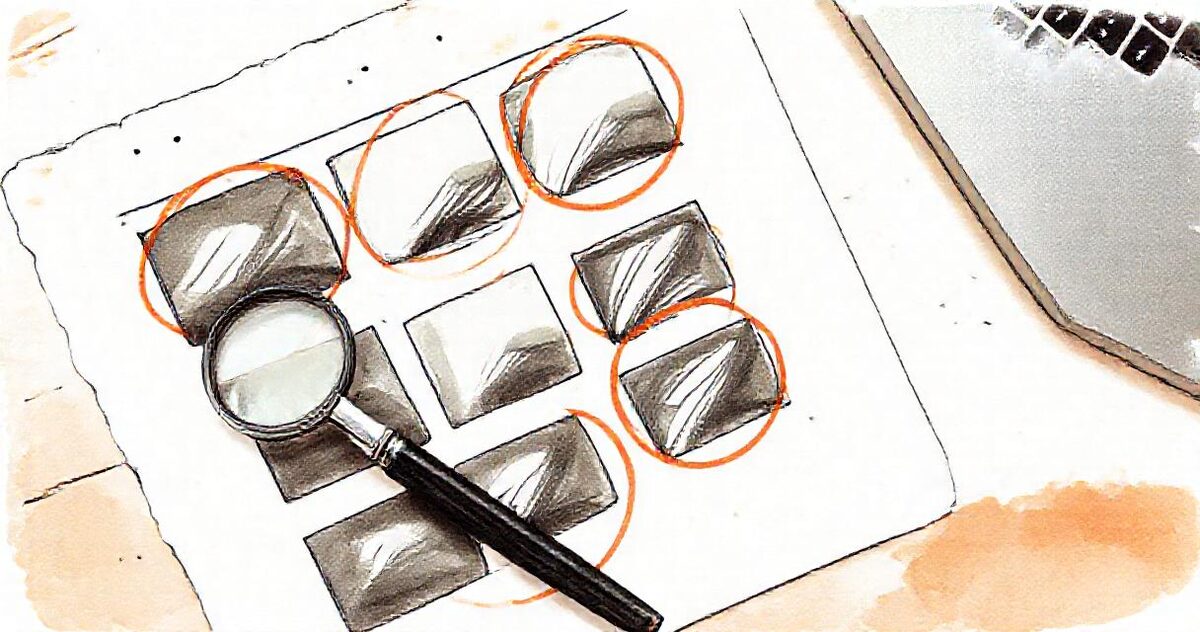
2. Why proofing stalls
Ask photographers where their album orders get stuck and the answer is almost always the same: waiting for the client’s choices. It rarely happens because the client doesn’t care. It happens because the task is vague. “Choose your favourites” has no end. A couple with 600 wedding photos and no number in mind will pick 40 on Sunday night, add another 90 a week later, and then go quiet because the job feels too big to finish.
Three things fix most of it:
- A number. “Choose 40” can be finished. “Choose your favourites” can’t.
- A date. “By Sunday 19th” turns it into an evening’s task instead of a someday task.
- One place to do it. Picks made on a phone during a lunch break should be there on the laptop that evening, without anyone keeping a list.
3. How many photos to ask for
Work backwards from what you are delivering:
| Job | What to ask for |
|---|---|
| Wedding album | Spreads × 2–3, plus 10% spare |
| Headshots with retouching | The number of retouched images in the package |
| Mini or family session | The number of images included, then offer the rest as an add-on |
| Prints or wall art | One per print, plus a size for each |
| Product or brand shoot | The deliverable count in the brief |
For albums, design guides from album makers suggest keeping to roughly two or three photos per spread on average; Queensberry’s guide on how many images to include in an album works through the numbers for different album sizes. A 15-spread album is then about 30 to 45 photos. Ask for 40 and you have a little room to design with.
Some couples will still want more. That’s fine, as long as it’s a decision rather than a drift: offer extra spreads at a price, and let them choose.
4. Setting up the gallery
Whatever tool you use, the setup comes down to the same handful of choices.
Use the full proof set, lightly edited
Show every image you would be happy to deliver, with a consistent preset applied, but not retouched. Retouching comes after the choice; that’s the point of the choice. Leave out the obvious rejects (blinks, misfires, near-duplicates) so the client isn’t choosing between five copies of the same frame.
Organise it the way the day happened
For anything longer than an hour, split the set into sections: getting ready, ceremony, portraits, reception. Clients choose more evenly when they can see the whole story, and they’re less likely to pick 30 photos from the first hour and run out of numbers before the first dance. In GalleryLink, subfolders in your Drive folder become sections automatically, with a jump bar at the top.
Turn on favourites and selection
In GalleryLink, open the gallery’s settings and switch on album selection. Set the target (for example, 40) and a short note that appears in the gallery, such as “Choose 40 for your album by Sunday 19 October.” Clients tap a heart on each photo they like, see their count against the target as they go, and press submit with their name and an optional message when they’re done. No account, no app. Favourites and album selection are part of Pro.
Keep it private
Proofing galleries include outtakes and unretouched frames, so treat them as private. Keep the gallery unlisted, and add a password if the client would rather it wasn’t opened by whoever they forward the link to.
5. Asking clients to choose
The message that goes with the link does most of the work. It should say four things: what they’re choosing for, how many, by when, and what happens next. See the templates at the end of this guide.
Then, crucially, leave a gap and follow up once. A short reminder two days before the date, saying how many they’ve picked so far, gets far more finished selections than a second copy of the original email. In GalleryLink you can see each client’s hearts as they go on the gallery’s Client picks page, so you can write “You’re at 28 of 40, nearly there” instead of “Just checking in”.
If several people are choosing (a couple, and perhaps a parent), each person can submit their own named selection from the same gallery. Agree beforehand whose list decides the album.
6. From picks to a Lightroom selection
This is the step where most of the time used to go: retyping file numbers, or scrolling through 600 frames to find “DSC_4412, 4415 and 4420 to 4433”. There is a much faster way.
- On the gallery’s Client picks page in GalleryLink, find the submitted selection and press Copy for Lightroom. This copies the chosen filenames as a comma-separated list with the file extensions removed, so
DSC_4412.jpgbecomesDSC_4412and matches your raw file too. - In Lightroom Classic, go to the Library module, select the folder or collection with the shoot, and press \ to show the Library Filter bar.
- Choose Text, then Filename and Contains, and paste.
- Lightroom now shows only the client’s choices. Select all and add them to a collection called something like “Album selection”.
Two catches. Lightroom doesn’t match the list if you include extensions, which is why the button removes them, and it doesn’t work for filenames that contain spaces, so rename to something like Smith-Wedding-0412 on export rather than “Smith Wedding 0412”. Proofing services describe the same filename-filter approach for Lightroom and Capture One, and Capture One users can paste a list into its filename search in a similar way.
If you’d rather work from the files themselves, there’s also a plain Copy filenames button for a one-per-line list to paste into an email or a note.

7. Weddings, headshots, families and products
Weddings
Send the proofing gallery with the main delivery, not weeks later, while the couple is still looking at the photos every day. Ask for the album selection by a date two to three weeks out. Before you design, look through their set for gaps: if they chose no wide shot of the venue or no photo of the cake, ask whether that’s deliberate. They often just missed it.
Once the selection is in, you can show the couple their picks laid out as a page-turning book with GalleryLink’s album view, which builds its pages from the latest submitted selection. It’s a useful way to agree the set before you design the real thing.
Headshots and corporate portraits
Speed matters more than anything here. Send proofs the same day, ask for one or two picks per person within 48 hours, and retouch only those. For a team shoot, give each person a section named after them, so nobody scrolls past their colleagues to find themselves.
Family and mini sessions
Package numbers do the selling. “Your session includes ten images; choose your ten, and any extra are $15 each” keeps the choice simple and gives clients a reason to add more. Set the target to the package number and mention the add-on price in the gallery note.
Products and brands
Brand clients often have several people giving input. Ask for one person to submit the final selection, and use the message field for notes like “crop for square” or “remove the label on the left”, so the instructions arrive with the picks rather than in a separate email thread.
8. Common mistakes
- No number. The single biggest cause of stalled selections. Always give one.
- No deadline. Without one, proofing waits behind everything else in the client’s life.
- Too many near-duplicates. Five versions of the same frame make every choice harder. Cull before you share.
- Retouching before the choice. You end up retouching photos nobody picked.
- Collecting picks in chat. Screenshots and file numbers sent over messages are where mistakes come from. Keep the choices in the gallery.
- Taking the selection at face value. A two-minute check for missing moments prevents a reprint later.
9. Message templates
Wedding album selection
Your gallery is ready: [link]. When you’re ready, choose the photos for your album: tap the heart on each one you love, aiming for 40 in total, and press “Submit” when you’re done. It’s easiest on a laptop, but your hearts are saved as you go, wherever you pick. Could you send your selection by Sunday 19 October? I’ll start designing the album as soon as it arrives.
Headshot retouching picks
Your proofs are ready: [link]. Your package includes two retouched images. Tap the heart on your two favourites and press “Submit” by Thursday, and I’ll send the finished files on Monday.
A friendly reminder
A quick reminder that the album selection is due on Sunday. You’re at 28 of 40, so nearly there! If you’d like more spreads than the package includes, just add the extra photos and I’ll send you a price.
If you deliver from Google Drive, you can set all of this up on the folder you already export into: our guide to turning a Drive folder into a gallery covers sections, passwords and sharing. Or make a sample gallery in about a minute and try hearting a few photos yourself.