How to Deliver 50+ Client Galleries a Month From Google Drive (2026)
A system for high-volume photo delivery from Google Drive: one folder structure, a template gallery, bulk and automatic gallery creation, automatic sending, section downloads, closing dates and a tidy month-by-month dashboard.
Short answer
Use one parent Drive folder with a subfolder per client, one template gallery, and let galleries be created automatically (or up to 50 at once) with a closing date and the link emailed to the client. Big galleries download in parts or by section, and a month view with an archive keeps the dashboard manageable.
Delivering a few galleries a month from Google Drive is easy: make a folder, share the link, send it. At fifty a month it breaks. Links go out late or to the wrong person, half-uploaded folders get opened, nobody remembers which galleries are still online, and the client who wants "just the reception photos" downloads four gigabytes on their phone and gives up.
This guide is the system we'd use to deliver 50 or more client galleries a month from Google Drive without it turning into a second job: one folder structure, one template, automatic gallery creation, closing dates, and a dashboard that stays tidy.
- Why manual delivery stops working at volume
- Step 1: One parent folder, one subfolder per client
- Step 2: Set up one template gallery
- Step 3: Create galleries in bulk, or automatically
- Step 4: Send the link without copying and pasting
- Step 5: Make big galleries downloadable
- Step 6: Closing dates and retention
- Step 7: Keep the dashboard tidy
- A week at 50 galleries a month
- Mistakes that cost the most time
Why manual delivery stops working at volume
Fifty galleries a month is roughly two or three deliveries every working day. Each one done by hand is about ten small steps: create the folder, upload, check the upload finished, set sharing, copy the link, write the message, find the client's email, send it, note the date, and remember to take it down later. At two minutes a step that's twenty minutes a gallery, or more than sixteen hours a month spent on links.
The time isn't even the worst part. The errors are:
- Half-uploaded galleries: the client opens the link while the last ceremony is still syncing.
- Wrong link, wrong client: easy to do when twenty folders have similar names.
- Galleries that never close: your contract says 45 days; the link still works a year later.
- Downloads that fail: a 1,500-photo wedding as one ZIP on a phone connection.
- Google Drive's download limits: a popular gallery can hit Drive's per-file quota (see "Download quota is exceeded").
The fix is to make every delivery follow the same path, and to let software do the repetitive steps.
Step 1: One parent folder, one subfolder per client
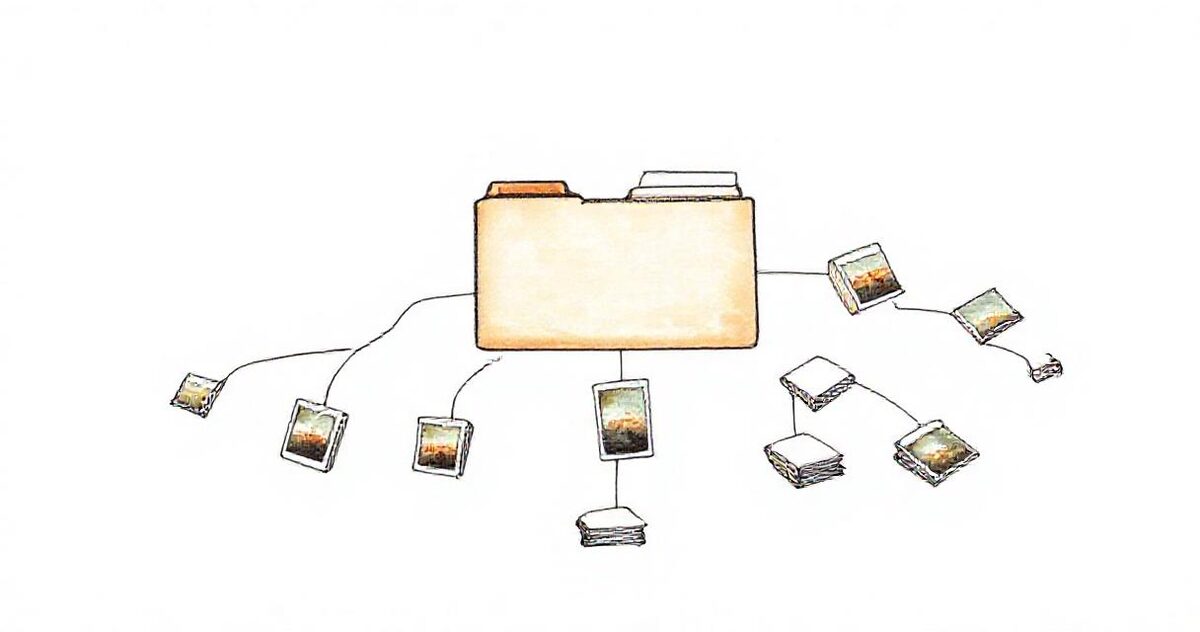
Everything starts with a predictable structure in Drive. Make one parent folder, for example Client deliveries, and put every client's finished photos in their own subfolder inside it. Inside a client folder, subfolders become sections of the gallery.
| Level | Example | What it becomes |
|---|---|---|
| Parent folder | Client deliveries | The folder GalleryLink watches |
| Client folder | 2026-11-14 Priya & Arjun · priya@example.com | One gallery, titled "Priya & Arjun" |
| Section folders | 01 Haldi, 02 Ceremony, 03 Reception | Sections in that gallery, in that order |
A few naming rules save hours later:
- Start client folders with the date (2026-11-14). Drive sorts them in delivery order, and you can find any month at a glance.
- Put the client's email in the folder name if you want the link emailed automatically (it's taken out of the gallery title, so clients never see it on the cover).
- Number section folders (01, 02, 03) so ceremonies appear in the right order.
- Export finished photos only. Keep RAW files and working copies in a separate folder tree that is never shared.
If you edit in Lightroom, export straight into the client's folder; our Lightroom to Google Drive guide covers the export settings.
Step 2: Set up one template gallery
At volume, you shouldn't be choosing a theme, layout and download settings fifty times a month. Build one gallery the way you want every delivery to look: theme, layout, cover style, downloads on or off, Download all, favourites, your logo. That gallery becomes the template every new gallery is copied from.
Two settings matter most for high volume:
- Download all: switch it on if clients should get their originals. Big galleries are split into several ZIP parts automatically.
- Favourites and selections: on, if clients pick photos for an album, so the selections come back to you instead of arriving as screenshots in a chat.
Running different kinds of shoot? Keep one template per type (wedding, portrait, event) and use Duplicate to start each new gallery from the right one.
Step 3: Create galleries in bulk, or automatically
There are two ways to stop making galleries one at a time.
Bulk create: for a backlog or a busy weekend
Paste the parent folder's link and GalleryLink lists its client subfolders with their photo counts, marking any that already have a gallery. Tick the ones you want and up to 50 galleries are made at once, one per folder, all from your template. This is the fastest way to move an existing archive of deliveries over, or to clear a weekend of shoots in one sitting.
Automation: for every delivery from now on
Share the parent folder once and switch on automation. From then on, every new client subfolder becomes a gallery on its own:
- You export the finished photos into a new client folder.
- GalleryLink notices the new folder and waits until its photo count has stopped changing for a few minutes, so a half-uploaded session never goes out.
- It creates the gallery from your template, with the closing date you chose.
- If the folder name holds an email address, the client gets the link by email. It can also post the link to Make, Zapier or n8n, so it can go out by text message or through your booking system instead.
Clients only ever get their own gallery. The parent folder is shared with GalleryLink, not with them, and Google doesn't reveal a shared file's parent folder, so one client can't find another's photos.
For the general version of this, without the volume angle, see how to automate photo delivery to clients.
Step 4: Send the link without copying and pasting
The send step is where most mistakes happen at volume. Pick one channel and make it automatic:
- Email from the folder name: the simplest. The client's address in the folder name means the link is emailed the moment the gallery is ready.
- A webhook to your own tools: send the link to your CRM, booking system or a messaging service through Make, Zapier or n8n.
- Manual, but checked: if you prefer to send it yourself, use the gallery's Share button rather than copying links from Drive, so the link always matches the gallery.
Whichever you choose, keep the message the same every time: who it's from, what's inside, how long it stays online, and how to download.
Step 5: Make big galleries downloadable
A multi-day wedding with 1,500 photos is several gigabytes. One giant ZIP is the most common reason clients say "the download doesn't work".
- Download all in parts: big galleries are split into ZIP files of a manageable size, labelled Part 1, Part 2 and so on.
- Download by section: when a gallery has two or more sections, each section heading has its own download, so a guest can take just the Reception as its own ZIP. This is the biggest help for multi-ceremony weddings, where different family members want different events.
- Single photos: anyone can still save one photo at a time, and on iPhone straight into Photos.
Section downloads also go easier on Google Drive's download limits: a family downloading three sections they care about requests far fewer files than three people each downloading everything. If a file does hit Drive's limit, here's how to fix it.
Step 6: Closing dates and retention
At fifty galleries a month you'll have six hundred live galleries within a year unless something closes them. Decide your retention period once, put it in your contract, and let the software enforce it.
- Set a closing date on every gallery: with automation, every new gallery gets the same number of days (for example 45). Clients see the date in the last two weeks, so it never surprises them.
- Nothing is deleted: when a gallery closes, the photos stay in your Drive. A client who comes back later can ask for it to be reopened, and you can move the date to open it again.
- Tell clients the date in your delivery message so they download in time.
How long is right depends on your market and contract; how long client galleries should stay online compares the common choices.
Step 7: Keep the dashboard tidy
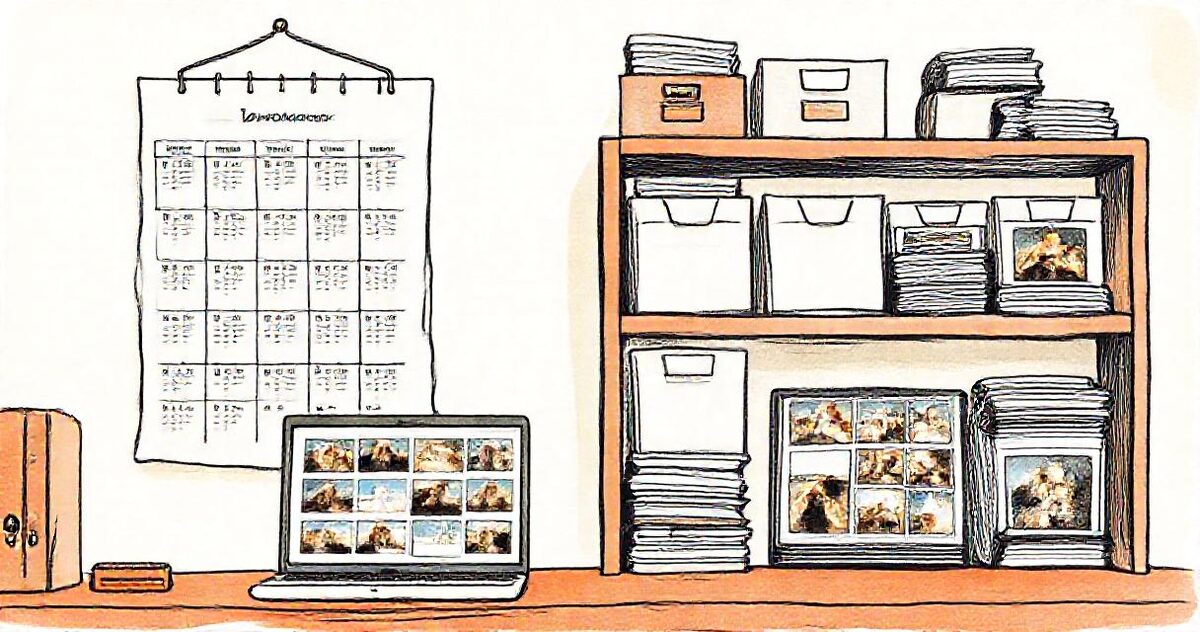
A flat list of hundreds of galleries is where things get lost. Three habits keep it manageable:
- Group by month: the dashboard can show galleries under month headings, with a month picker, so "everything we delivered in October" is one click away.
- Archive finished deliveries: archiving takes a gallery out of your main list without closing it; clients can still open it until its closing date.
- Use "Needs attention": it gathers galleries where a client has sent an album selection for you to review, so you never miss one in a long list.
A week at 50 galleries a month
| When | What happens | Your time |
|---|---|---|
| After each edit | Export finished photos into a dated client folder with the client's email in the name | Part of exporting |
| Minutes later | The gallery is created from your template and the link is emailed to the client | None |
| Through the week | Clients view, pick favourites and download by section | None |
| Once a week | Review album selections in "Needs attention", archive finished deliveries | About 15 minutes |
| After the closing date | Galleries close on their own; photos stay in your Drive | None |
The only manual step left is the one that should be manual: editing the photos.
Mistakes that cost the most time
- Uploading straight into the watched folder from your camera card. Unedited files become a gallery. Export only finished photos there.
- Renaming client folders after the gallery exists. The gallery keeps working, but your Drive and your dashboard stop matching. Name folders correctly when you create them.
- One gallery for several clients. Keep one client per folder; it's what makes privacy and closing dates work.
- No retention policy. Without closing dates, every gallery you've ever sent stays online, and so does every download quota problem that comes with it.
- Changing the template mid-season without checking it. Every new gallery copies it, so open a test gallery after any change.
Which plan this needs
Galleries from Google Drive, Download all in parts, section downloads, closing dates and duplicating galleries are part of Pro. The high-volume tools in this guide, automation from a watched folder, bulk create of up to 50 galleries, the month view and archive, clients saving a gallery to their own Google Drive, and 250 GB of hosted storage, are part of Studio, at $15 a month or $150 a year. Everything on each plan is on the pricing page.
Related: delivering multi-day wedding photos and a second-shooter delivery workflow.