Website Creator With Google Drive: How to Build a Site From Your Drive Folders (2026)
Every way to make a website from Google Drive in 2026: Google Sites, website builders, Drive hosting (gone since 2016) and Drive-first creators, with a step-by-step build, folder setup, SEO and the mistakes that break Drive sites.
Short answer
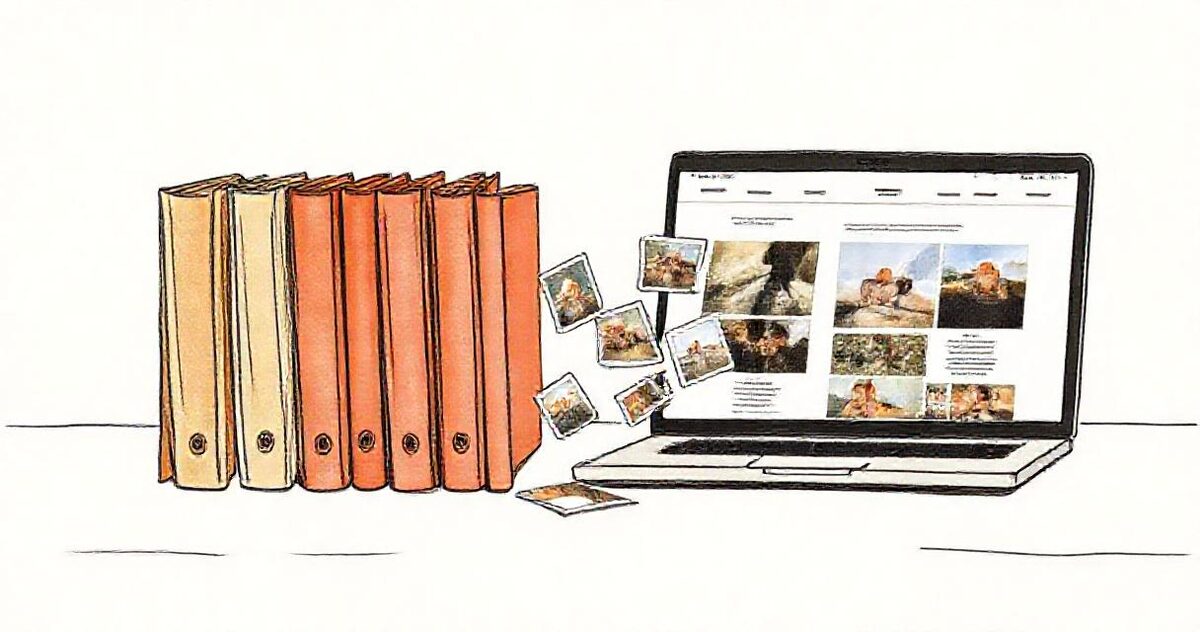
Google Drive can't host a website itself any more, but you can build one from your Drive folders. Google Sites is free and embeds Drive files, though folders show as file lists. A website builder means uploading photos again. A Drive-first website creator such as GalleryLink turns each folder into a gallery and the galleries into a portfolio, catalogue or property site that updates when the folder does.
If your photos already live in Google Drive, sorted into folders the way your business works, you have done most of the work a website needs. A wedding photographer has a folder per couple. A furniture maker has a folder per range. A holiday let owner has a folder per property, with the bedrooms and the pool as subfolders. The question is how to turn those folders into a website without copying every photo into a website builder and keeping two copies in step for ever.
This guide covers every realistic way to make a website with Google Drive in 2026: what Google itself offers, what stopped working years ago, how general website builders handle Drive, and how a Drive-first website creator like GalleryLink works. We built the last one, so we say where it fits and where it does not, and we compare it with the free options honestly.
- The short answer
- Five ways to make a website from Google Drive
- The options side by side
- Step 1: organise the Drive folders
- Step 2: build the website, step by step
- Which kind of website your folders make
- Will Google find a website made from Drive?
- Six mistakes that break Drive websites
- What a Drive website is not good at
The short answer
Google Drive cannot host a website on its own any more; Google switched off Drive web hosting in 2016. You have three working paths. Google Sites is free and can show Drive files and folders on a page, but a folder appears as a file list, not a designed gallery. A general website builder such as Squarespace or Wix gives you full design control, but you upload the photos again and update them by hand. A Drive-first website creator reads your folders directly: each folder becomes a gallery, and the galleries become the pages of a portfolio, catalogue, property site, press room, event hub or menu. Add a photo to the folder and it is on the site.
Five ways to make a website from Google Drive
1. Host the site straight from Drive (no longer possible)
Old tutorials still describe putting HTML files in a public Drive folder and opening them at a googledrive.com address. Google ended that feature on 31 August 2016. Today a shared HTML file in Drive opens as a file preview or a download, not as a web page. If a guide tells you to do this, it was written before 2016.
2. Google Sites, Google's own free website creator
Google Sites is the official answer, and for some jobs it is the right one. It is free with a Google account, it has a drag-and-drop editor, and its Insert panel has a Drive button: pick a file or a whole folder and it sits on the page. A Google Doc, Sheet or Slides deck embeds well. You can put the site on your own domain after verifying the domain with Google.
The weak point is photos. An embedded Drive folder shows as a list or grid of files with their file names, and clicking one opens Drive's viewer. To show photos as a designed gallery you use the image carousel or image blocks, which copy the chosen images into the site: add a new photo to the folder and the page does not change. Google Sites suits an intranet, a team handbook, a class page or a simple information site. It is a weaker fit when the photos are the point of the site.
3. A general website builder with a Drive embed
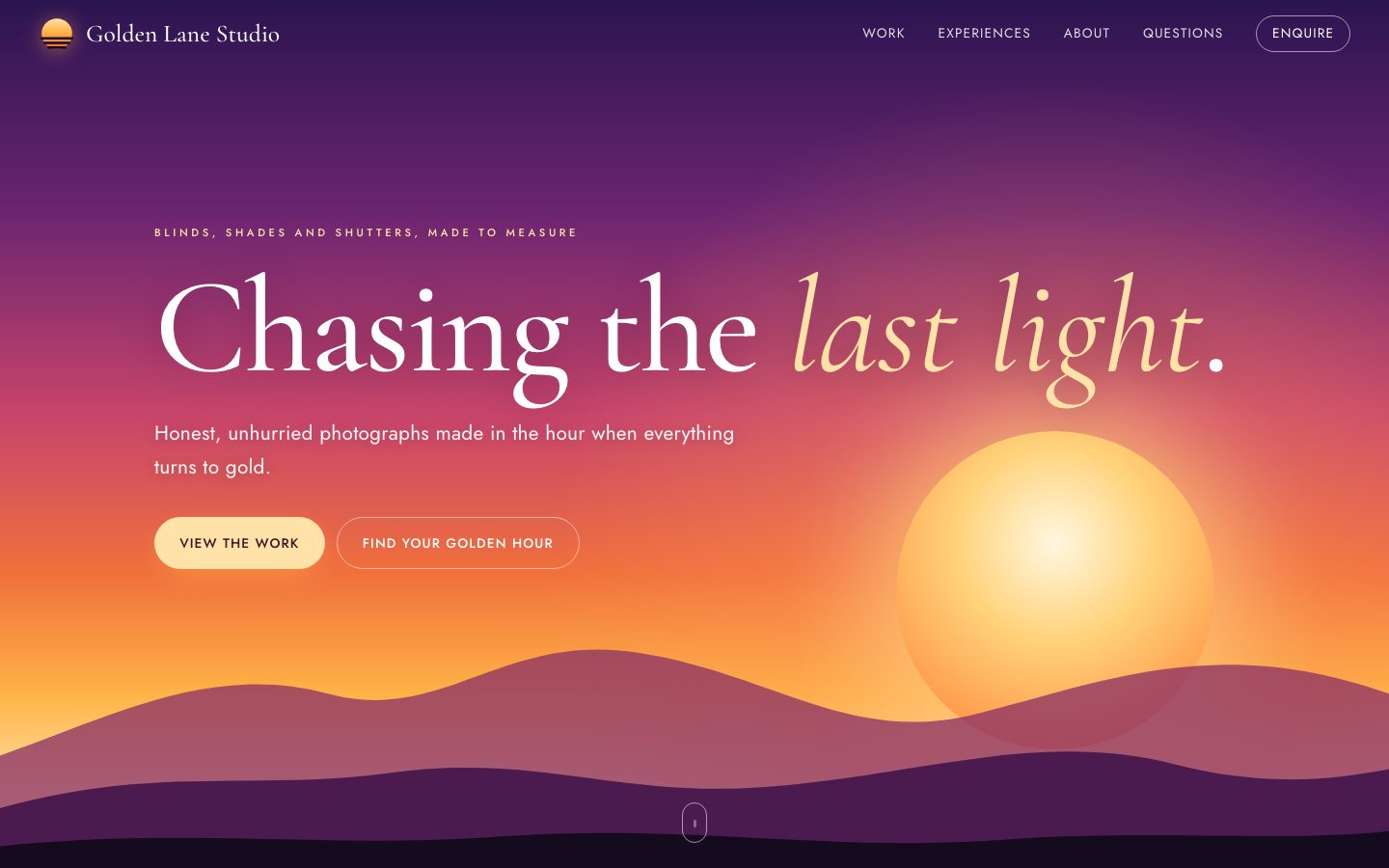
Squarespace, Wix, Webflow and WordPress make beautiful sites, and none of them reads a Google Drive folder as a gallery. You either upload the photos into the builder (then every new photo means another upload) or paste an embed from a gallery tool into a code block. Both work. The cost is the double handling: the photos live in Drive and in the builder, and the builder's copy goes stale. We compared seven of these for photographers in our 2026 website builder comparison.
4. Static site hosts that read files from Drive
A few small services will serve HTML, CSS and images stored in a Drive folder at a web address. They solve hosting, not building: you still write the website yourself, by hand or with a site generator. They suit developers who want Drive as the storage layer. For everyone else they bring back the hardest part of the job.
5. A Drive-first website creator
The fifth path starts from the folders. You paste a Drive folder link, the tool reads the photos and videos in place (nothing is copied), and the folder becomes a gallery. Then you choose what the website is for and a design, and the galleries become its pages: a portfolio's work, a catalogue's categories, a rental site's properties. This is how GalleryLink websites work. The photos stay in Drive, so the site is current the moment the folder is.
The options side by side
| Google Sites | General builder (Squarespace, Wix) | Static host from Drive | GalleryLink website | |
|---|---|---|---|---|
| Reads photos live from Drive | File list only | No, upload again | Yes, but you write the HTML | Yes, as designed galleries |
| New photo in the folder shows on the site | In the file list | No | Yes | Yes |
| Design work | Drag and drop | Drag and drop, most control | Code | Pick a design, write a few lines |
| Your own domain | Yes | Yes | Depends on the service | Yes, on Pro and Studio |
| Blog, online shop | No shop | Yes | If you build it | No |
| Cost | Free | Monthly plan | Varies | Free to build and preview; publishing on Pro |
| Best for | Intranets, class and team pages | Marketing sites with a blog or shop | Developers | Sites where the photos are the content |
Step 1: organise the Drive folders
Whatever you choose, the folders decide how good the site can be. Ten minutes here saves an hour later.
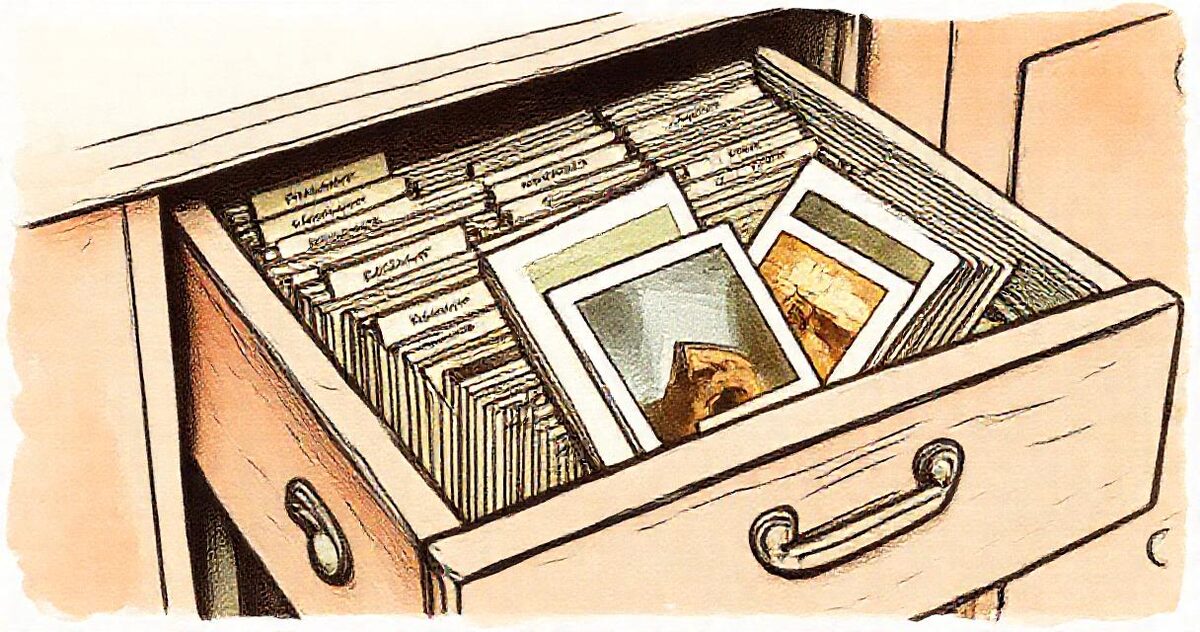
- One folder per page of the site. One per couple or shoot for a portfolio, one per category for a catalogue, one per property for a rental site, one per kit for a press room, one per event for a club or school.
- Subfolders become sections. Bedrooms, Pool and Views inside a property folder; Starters, Mains and Desserts inside a menu; Logos, Product and People inside a press kit.
- Only finished photos. The folder is the page. Keep raw files and rejects in a separate folder that never gets shared.
- File names that read well. Where a design shows names, "Oak dining table 180cm" beats "DSC_4471". Photos without a name show a tidied file name.
- Share as "Anyone with the link". In Drive, open the folder's Share settings and set General access to Anyone with the link, Viewer. A restricted folder cannot be read by any website. Our guide to turning a Drive folder into a photo gallery has screenshots of each setting.
Step 2: build the website, step by step
Here is the whole process in GalleryLink, from folders to a published site. Building and previewing is free; you only need Pro when you publish.
- Make a gallery from each folder. In the dashboard, choose New gallery and paste the folder's Drive link. GalleryLink finds the photos and videos, shows a preview, and the folder becomes a gallery with its own link. Subfolders become sections. Repeat for each folder the site needs.
- Add details where the site needs them. In the gallery editor you can give any photo a title, a description, a price and tags. A catalogue uses all four; a portfolio usually needs none.
- Open Website and pick what the site is for. Portfolio, Product catalogue, Property listings, Press & media room, Event & season hub or Restaurant menu. The choice decides which pages and buttons the site has.
- Choose a design and a colour theme. Each kind has its own designs, each with four colour themes, and the preview uses your own galleries and words, on desktop and on a phone.
- Write the words once. A headline, an about paragraph, your contact details, a booking or order link if you have one. The editor saves as you type.
- Choose the galleries that appear and their order.
- Publish. The site goes live at yourname.gallerylink.live. On Pro and Studio you can connect your own domain, such as www.yourstudio.com or menu.yourrestaurant.com. You can unpublish at any time.
From then on the website is maintained in Drive. Drop a new photo into a folder and it appears on its page; delete one and it is gone. There is no second copy to update.
Which kind of website your folders make
The same folders can make very different sites. The kind you choose decides what a visitor sees.
A photography portfolio
Your best galleries become the Work section, with about, services, process, kind words, questions and an enquiry form around them. Three designs: Sunset for weddings and portraits, Folio for editorial and fine-art work, Stage for music and events. See the portfolio website page.
A product catalogue
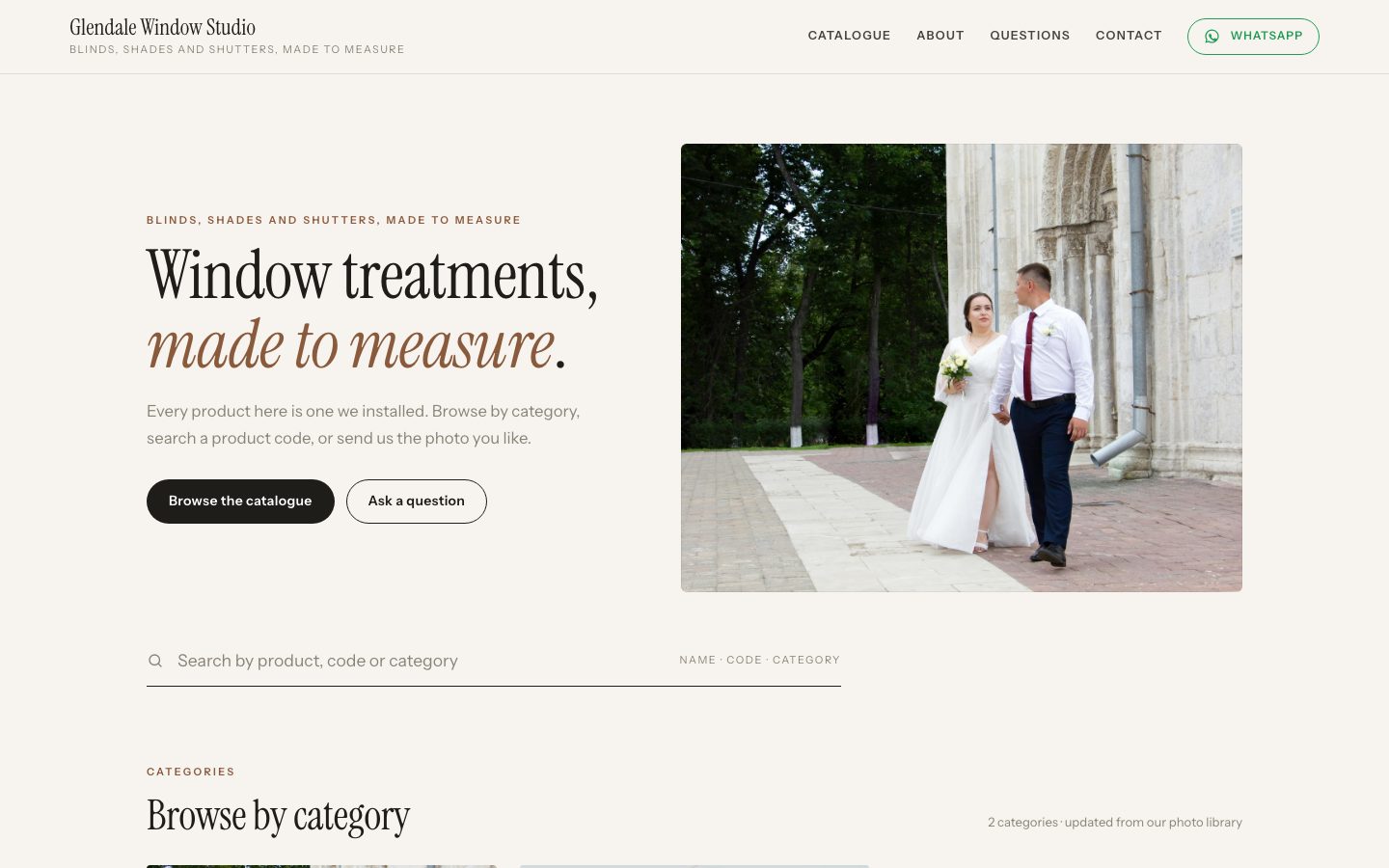
One folder per category becomes a page per category, with each item's photo, name, code and price, a search box across the whole catalogue, and an "Ask about this item" button by email or WhatsApp. Two designs: Catalogue, a showroom, and Boutique, a store front for shops with many labels. See the catalogue website page or our guide to a product catalogue from Google Drive.
Holiday rental and property listings
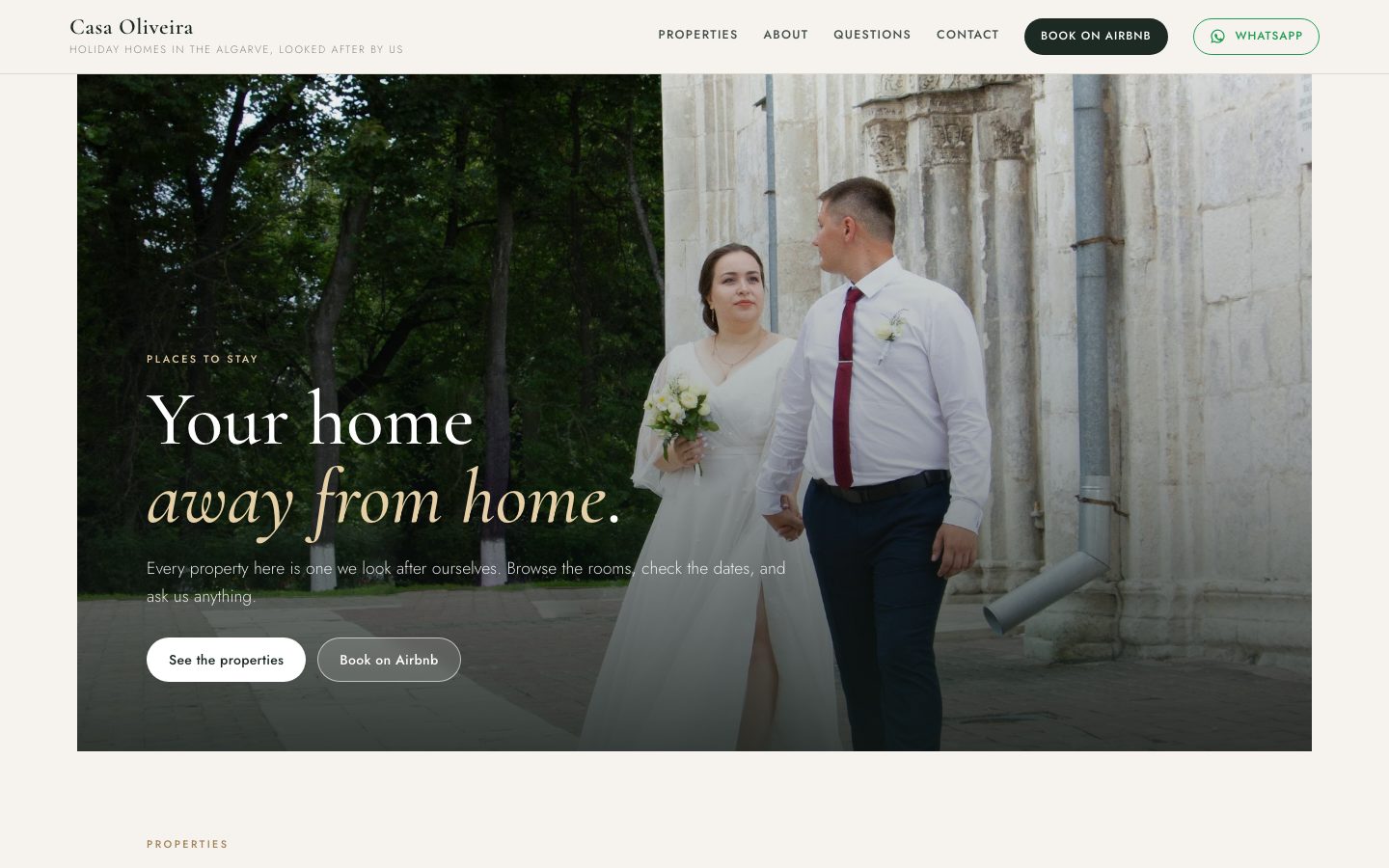
One folder per property, rooms as subfolders. Each property gets its own page with its description, the rooms as headings, a booking button in the header and an enquiry form that asks for dates. See the property website page.
A press and media room
One folder per kit: logos, product photos, portraits, the venue. Journalists see a press contact, your boilerplate and facts, and each kit with a file count and Download all. See the media room page.
An event and season hub
For schools, clubs and leagues: one gallery per match or event, grouped by season, searchable by team, class or photo number, with an order button for prints. See the event hub page.
A restaurant menu
A folder per menu, a subfolder per course, a photo or a short video per dish, with prices and allergen tags, plus a QR code for the tables. See the menu website page.
Will Google find a website made from Drive?
It depends on how the pages are built, not on where the photos are stored. Google needs pages it can read as HTML, with a title, a description and words on the page. An embedded Drive folder inside an iframe gives Google almost nothing to index. A GalleryLink website renders every page as plain HTML on the server, including category, property and kit pages with their items, with a title, description and canonical link for each page. The photos themselves are served from Drive, which keeps them in one place; the text around them is what ranks.
Three things help any site made from Drive rank:
- Write real words. A two-line about paragraph will not rank. Say what you do, where, and for whom.
- Name things. Product names, property names and gallery titles become headings and page titles.
- Use your own domain. A domain you keep for years builds trust that a free subdomain does not.
Six mistakes that break Drive websites
- Leaving the folder restricted. If sharing is set to Restricted, visitors see an error or a sign-in page. Set the folder to Anyone with the link before you build.
- Moving the folder to a different account. A folder's link is tied to the folder. Moving it to another person's Drive can change its owner and its sharing; check the site after any reorganisation.
- Sharing a folder full of personal files. Anyone with the link can open everything in the folder. Keep website folders separate from everything else.
- Huge originals on a phone page. A website should show resized images and offer the original only as a download. Gallery tools do this; a raw embed may not.
- Relying on an embed for SEO. An iframe of a Drive folder does nothing for search. Pages need their own text.
- Two copies of every photo. The moment the photos live in Drive and in a builder, one copy goes stale. Choose one home for them.
What a Drive website is not good at
A website made from Drive folders is the right tool when the photos are the content and you want the site to stay current without effort. It is the wrong tool for some jobs, and we would rather you knew before you start:
- A blog. GalleryLink websites have no blog. If writing is central, a general builder or WordPress is the better home, and you can link your galleries from it.
- Checkout and payments. Catalogues take enquiries by email and WhatsApp; there is no cart. Shops that need checkout should use a shop platform.
- Free-form layout. You choose a design and switch sections on and off. You do not drag boxes around. That is the point for most people and a limit for some.
- Booking calendars. Property sites link to your booking page (Airbnb, your booking engine) rather than showing availability.
If those limits are fine, the quickest way to judge is to try it with your own folders: make a free account, turn two or three folders into galleries, and preview the website before you decide anything. The websites overview shows every design.