Google Drive vs Google Photos for Sending Photos to Clients: Which Should You Use? (2026)
Both are free, both share the same Google storage, and both give your client a link. But Google Drive and Google Photos treat your files very differently: quality, folders, what people with the link can do, and how it looks to a paying client. A side-by-side comparison and a clear recommendation.

Short answer
For paid client work, use Google Drive. It keeps your exported files exactly as they are, keeps your folder structure, and lets you share one folder as ‘Anyone with the link’. Google Photos is better for casual sharing, but if your account backs up in Storage saver, photos above 16 MP are resized to 16 MP, and shared albums have no folders or sections. Whichever you use, check the quality setting and test the link before sending.
If you already pay for Google storage, you have two free ways to send a client their photos: a Google Drive folder or a Google Photos shared album. They look interchangeable from the outside. Both are Google, both give your client a link, and both use the same storage. But they were built for different jobs, and the differences show up exactly where clients notice them: image quality, organisation and what happens when the link gets forwarded.
This guide compares the two side by side for client delivery, explains the one setting that can quietly shrink your photos, and ends with a clear recommendation for paid work.
Table of Contents
- 1. The comparison at a glance
- 2. Quality: the setting that can shrink your photos
- 3. Folders versus albums
- 4. What people with the link can do
- 5. Storage: they share the same 15 GB
- 6. When Google Photos is the better choice
- 7. Our recommendation for paid client work
- 8. Making a Drive delivery look professional
1. The comparison at a glance
| Google Drive folder | Google Photos shared album | |
|---|---|---|
| Built for | Storing and sharing files | Your personal photo library and casual sharing |
| Files your client gets | Exactly the files you exported | Depends on your backup quality setting (see section 2) |
| Organisation | Folders and subfolders, in the order you name them | A single album, typically ordered by date taken |
| Sharing | General access: ‘Anyone with the link’, no sign-in needed | Create link: anyone with the link can view |
| Storage | Shared 15 GB free, across Gmail, Drive and Photos | The same shared 15 GB |
| Looks like | A file list | A photo album |
| Best for | Paid client delivery | Family, friends and casual events |
2. Quality: the setting that can shrink your photos
This is the difference that matters most for professional work, and it is easy to miss. Google Photos stores photos at one of two backup qualities, and Google's help describes them plainly:
- Original quality: photos and videos are stored in the same resolution that you took them in with no change to their quality.
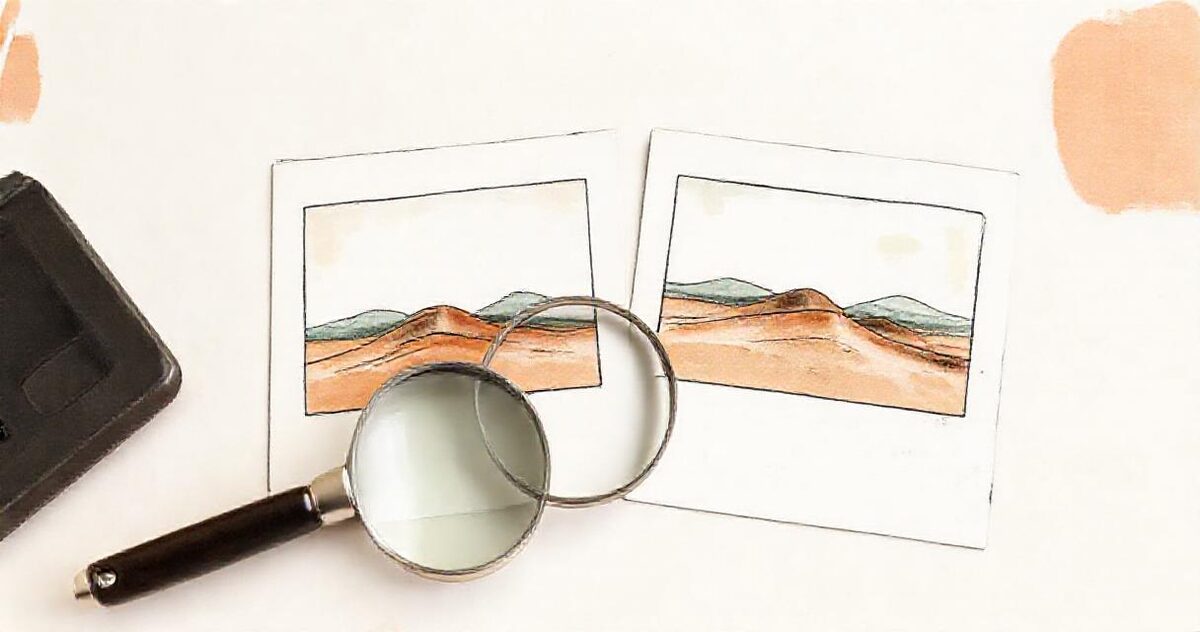
- Storage saver: photos and videos are stored at slightly reduced quality. Photos larger than 16 MP are resized to 16 MP, and videos higher than 1080p are resized to 1080p.
Most professional cameras shoot well above 16 MP. If your Google Photos account is set to Storage saver, the album your client receives holds the reduced copies, not the files you exported, and you may never notice until a client orders a large print. Google Drive does not have this setting: the file your client downloads from a Drive folder is the file you put there.
If you do use Google Photos for client work, check that your backup quality is set to Original quality before you add anything to a client album.
3. Folders versus albums
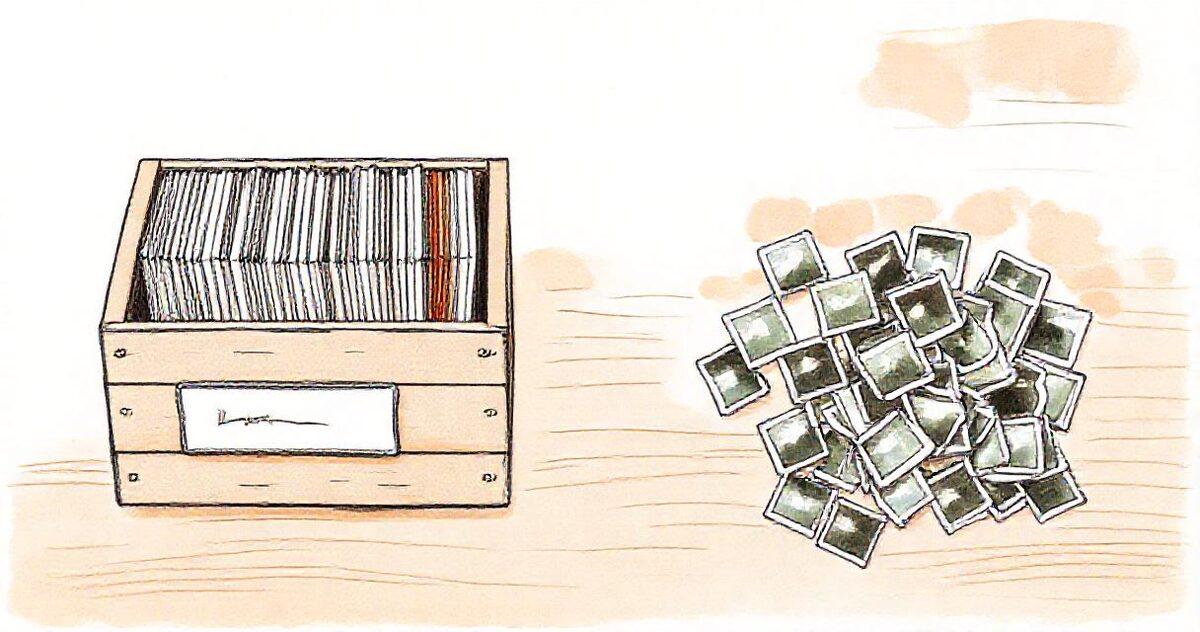
A wedding is not one undifferentiated pile of photos. Clients think in parts of the day: preparation, ceremony, portraits, reception. Drive lets you mirror that with numbered subfolders, so your client browses in the order the day happened and can download one part at a time. Our Lightroom to Google Drive workflow shows how to export straight into that structure.
A Google Photos shared album is a single collection without subfolders. That is lovely for a weekend away and harder to navigate for a 600-photo wedding. If you need separate sets, you end up sending several album links, which is exactly the kind of thing clients lose.
4. What people with the link can do
Both products share by link, and in both cases the link is effectively the key: Google's Photos help warns that anyone with the link can view the photos you share. Drive's ‘Anyone with the link’ setting is equally open, and Google's Drive help notes that people can open it without signing in to their Google Account.
The practical differences are in what else the link allows. Google Photos albums are designed to be collaborative; third-party guides such as Guiding Tech's link-sharing explainer walk through the permissions, including whether people can add their own photos. That is a feature for a family album and a risk for a client delivery that gets forwarded to a large group chat. Drive's Viewer role, by contrast, simply lets people see and download.
Whichever you use, open the link in a private browser window before you send it, so you see exactly what a client who isn't signed in sees. If something is off, our guide to Drive links that don't work for clients covers the common problems, and password-protecting galleries covers the sensitive ones.
5. Storage: they share the same 15 GB
A common assumption is that moving client work from Drive to Photos, or the other way round, saves space. It doesn't. Google says each Google Account includes up to 15 GB of storage, shared across Gmail, Google Drive and Google Photos. Paid Google One plans raise that shared total. Our guide to how much storage wedding photography needs helps size it.
Third-party reports also note that Google Photos albums have an item limit, widely reported as 20,000 photos and videos per album. That is rarely a problem for a single job, but worth knowing if you were planning to keep every client in one album.
6. When Google Photos is the better choice
Google Photos is genuinely better for some jobs:
- Casual and family events, where guests want to add their own phone photos to one shared album.
- Phone-first sharing, where everyone already uses the Google Photos app and the photos are personal rather than paid work.
- Quick, informal sneak peeks, as long as your backup quality is set to Original quality.
For collecting guests' photos at a wedding, a dedicated approach works better than either; our guide to collecting guest photos with a QR code covers it.

7. Our recommendation for paid client work
Use Google Drive. It keeps the exact files you exported at full quality, it keeps your structure, one folder holds the whole delivery, and the Viewer role does not invite strangers to add photos. Google Photos is a wonderful personal library, but the quality setting and the flat album make it the riskier choice for work a client has paid for.
The one thing Drive does not do well is presentation. A Drive folder looks like a file list, which brings us to the last step.
8. Making a Drive delivery look professional
A few habits make a Drive delivery feel finished: name files and folders in the order you want them seen, use numbered subfolders for each part of the day, put a strong photo first, and share the top folder rather than individual files. The complete Google Drive guide for photographers goes further.
If you want your client to open a gallery instead of a file list, a gallery tool that reads Google Drive can present the same folder without uploading anything again. On GalleryLink, you paste the folder link: subfolders become named sections, clients view full-size photos and download each one, and the gallery stays in sync with the folder. Your photos stay in your Drive, at the quality you exported them. You can try it with our sample folder in about a minute.